How to use Proton Experimental and other Proton versions in Heroic Games Launcher
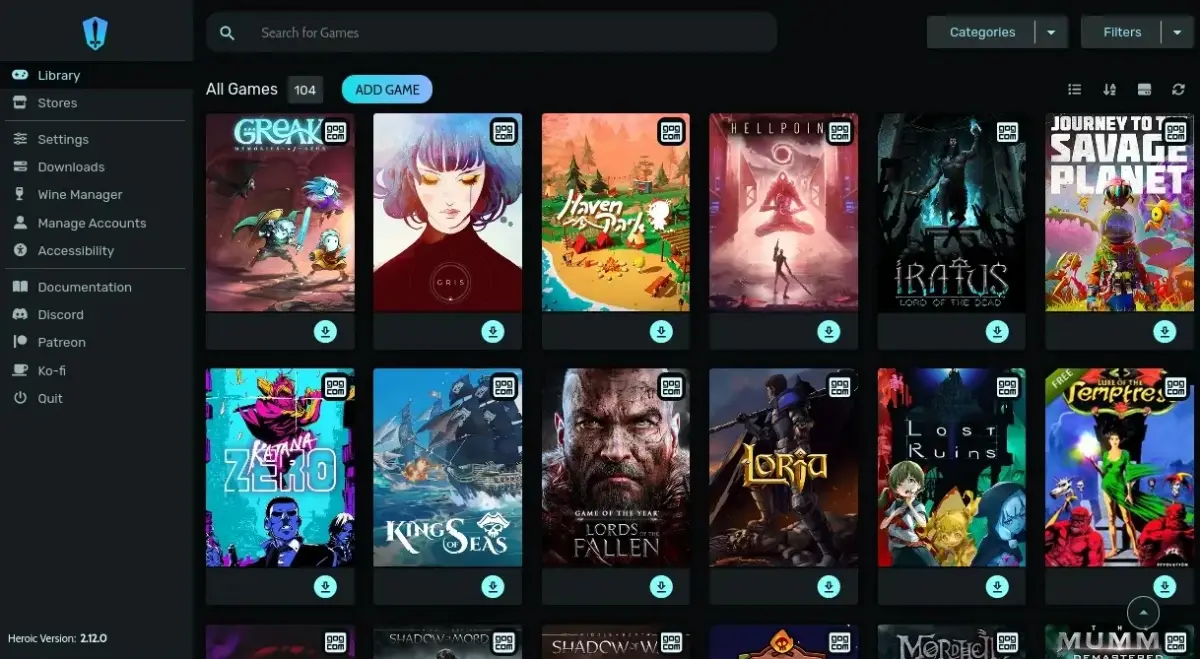
Heroic Games Launcher hides Valve's own Proton builds, including Proton Experimental, until you allow them. To use Proton Experimental in Heroic on Linux, install it through Steam, open Heroic's global Settings, go to Advanced and enable "Allow using Valve Proton builds to run games". Then pick Proton Experimental in the Wine Version menu of the game's settings. Custom forks such as GE-Proton and Proton-CachyOS stay visible at all times.
This guide covers how Heroic finds Proton versions, which builds it shows by default, how to switch versions per game, and how the default changed after the controversial 2.18.0 release in 2025.
What Heroic Games Launcher is and why Proton matters
Heroic Games Launcher is a free, open source launcher for games from the Epic Games Store, GOG and Amazon Games, and on Linux it relies on Wine or Proton to run the Windows versions of those games. The project describes itself as an "Open Source Game Launcher for Linux, Windows and macOS", is licensed under GPL-3.0, and uses Legendary for Epic, gogdl for GOG and Nile for Amazon Games under the hood.
Proton is Valve's Wine-based compatibility layer, built for Steam and SteamOS. Because Proton is open source, the community maintains forks with extra patches. GE-Proton by Glorious Eggroll is the best known, and Proton-CachyOS, Proton-EM and Proton-Sarek are other popular builds.
No single version is the best one. Some games run better on an older Proton release, others need the newest fixes, and a few only behave with Valve's Proton Experimental branch. That is why Heroic lets you choose a Wine or Proton version for every game separately instead of forcing one version on the whole library.

How to use Proton Experimental in Heroic Games Launcher
Proton Experimental works in Heroic once Steam has installed it and Heroic is allowed to read Valve's Proton builds. Heroic does not download Valve's Proton itself, so Steam has to supply it.
- Install Steam on your Linux system if it is not installed yet, and install Proton Experimental from your Steam library (it is listed as a tool, not a game).
- Open Heroic Games Launcher and go to Settings (the global settings, not a game's settings).
- Open the Advanced tab.
- Enable "Allow using Valve Proton builds to run games". Heroic shows a note that it recommends custom Proton forks such as GE-Proton or Proton-CachyOS; confirm to continue.
- Go to your library, open the game and open its settings.
- Choose Proton Experimental in the Wine Version menu and launch the game.
The same steps unlock the other Valve builds that Steam has installed, such as numbered Proton releases and Proton Hotfix. If a version does not show up in the menu, check that the Steam path in Heroic's settings points to the Steam installation that holds it, then restart Heroic.
Where Heroic looks for Proton versions
Heroic builds its Wine Version list from a few fixed folders, and only Valve's Steam folders depend on the setting above. According to Heroic's source code, the launcher scans:
- its own tools folder, where versions installed through Heroic's Wine Manager land;
- Steam's compatibilitytools.d folders, where custom builds such as GE-Proton usually live (always scanned);
- Steam's steamapps/common folders, where Steam keeps Valve's Proton builds (scanned only when "Allow using Valve Proton builds to run games" is on).
That design explains the behavior many users notice: a GE-Proton build you dropped into compatibilitytools.d appears right away, while Proton Experimental, which Steam installs into steamapps/common, stays hidden until you allow Valve builds. For any other location, Heroic's help text recommends a symbolic link to one of the scanned folders, or you can add the binary under Custom Wine/Proton Paths.

Install GE-Proton and Proton-CachyOS with the Wine Manager
The Wine Manager is the built-in Heroic tool for downloading Proton forks, and it is the easiest way to get a working version without touching Steam. Open Wine Manager from Heroic's sidebar, pick a build and install it; it then appears in every game's Wine Version menu.
Recent releases changed what the Wine Manager offers. Heroic 2.22.1 added Proton-CachyOS, made Proton-CachyOS the default Proton version and removed Wine-GE from the Wine Manager options. GE-Proton remains available, and Heroic notes that it is meant to run together with the umu launcher, which Heroic uses by default. An option in Heroic's settings can also download GE-Proton straight into Steam's compatibility tools directory, so Steam and Heroic share the same build.
| Proton build | How Heroic gets it | Visible by default |
|---|---|---|
| GE-Proton | Wine Manager or compatibilitytools.d | Yes |
| Proton-CachyOS | Wine Manager or compatibilitytools.d | Yes |
| Proton-EM, Proton-Sarek | compatibilitytools.d | Yes |
| Proton Experimental, Proton Hotfix, numbered Valve releases | Installed by Steam | No, needs the Advanced setting |
Why Heroic hid non-GE Proton versions in 2.18.0
Heroic 2.18.0, released in summer 2025, hid every Proton build except GE-Proton by default, and the developers reverted that within weeks. A warning under the Wine Version menu said non-GE Proton versions were ignored and could be enabled in the Advanced settings, but users who missed it suddenly could not select Proton Experimental, Proton Hotfix, older Valve releases or forks such as Proton-CachyOS, Proton-EM and Proton-Sarek.
Users pushed back in a GitHub issue titled "Unhide by default other Proton versions besides of GE Proton", arguing that the change confused people and treated other forks unfairly.
Heroic 2.18.1 Hotfix #1, published in early August 2025, changed the "Allow non-GE Proton" option so it only hides Valve Proton versions. Community forks returned to the list, and only Valve's builds now need the opt-in. The setting is called "Allow using Valve Proton builds to run games" in current versions, and the warning in the game settings reads "Valve versions of Proton are ignored by default, enable them in the Advanced global settings".

Which Proton version should you pick in Heroic?
Start with Heroic's default Proton build, and switch only when a game crashes, shows graphical bugs or refuses to start. A quick routine keeps troubleshooting simple:
- Try the default build first (Proton-CachyOS in current Heroic releases, or the latest GE-Proton).
- If the game fails, switch to the latest GE-Proton or Proton-CachyOS, whichever you did not use.
- For brand new games or recent fixes from Valve, allow Valve builds and test Proton Experimental.
- For older games that broke after an update, try an older numbered Proton release.
- Check the game's entry in community compatibility reports such as ProtonDB to see which version other players use.
Change one thing at a time and note what worked, because each game in Heroic keeps its own Wine Version setting. Players on the Steam Deck or other SteamOS devices can follow the same steps in desktop mode.
FAQ
Is Heroic Games Launcher free?
Yes. Heroic is free and open source software licensed under GPL-3.0, and it is available for Linux, Windows and macOS through Flathub, the project's GitHub releases page and package managers such as WinGet and Homebrew.
Does Heroic need Proton on Windows or macOS?
No. Proton is a Linux compatibility layer; on Windows, Heroic runs Windows games natively, and on macOS it works with Wine-based tools such as CrossOver instead.
Can Steam and Heroic use the same GE-Proton build?
Yes. Heroic always scans Steam's compatibilitytools.d folder, and it has an option to download GE-Proton directly into Steam's compatibility tools directory, so both launchers can use one copy.
Related: how to install Linux on an external SSD, Steam Deck downloads with the display off, Valve's Steam Machine

awesome
I still don’t think I’ve tried this store. I wanted to get GTA5 from Epic Games Store to work, but I was unable to. All the stores and launchers made it kind of difficult. Now Online can’t be played on Linux, because they added some kind of anticheat.
The launcher’s great, I use it for Epic and GOG. I’ve only tried a handful of games on Linux, but they all work fine.
As for GTA V, the Legacy version has a gold rating on ProtonDB https://www.protondb.com/app/271590.
Enhanced has a silver rating: https://www.protondb.com/app/3240220
Maybe you can try some of the launch options mentioned by the users there?