
Setting your computer time in Ubuntu

You computer's clock does more than just tell you the time. This clock also stamps your email with the correct time as well as documents and much more. So when your PC clock is off, your life is off (at least while you are working). So it is necessary to keep your machine time accurate. But how do you do this? Besides making sure your hardware clock is correct (which is commonly done through the BIOS settings), you need to know how to set the time.
In this article I am going to show you how to change the time on your Ubuntu machine using both the GUI and the command line. Hopefully, when you're done with this, your computer clock will always be accurate.
Another option
Of course there is always another option. You can always set up NTP on your machine. I have already covered this in my article "Installing and configuring NTP on Linux". That is, by far, the most reliable way to manage your clock. But when you don't have constant access to the internet, or you simply don't want to install a daemon on your machine - you have to resort to other methods. Let's take a look at them here.
Command line
In order to set the date from the command line, you use the date command. The date command, however, is not the simplest command to figure out - at least not from the man page. If you look at the man page for date you see the time format uses a specific time string format like:
MMDDhhmmYYYY.ss
What the above string means is:
- MM is a two digit month, between 01 to 12.
- DD is a two digit day, between 01 and 31. NOTE: Regular rules for days, according to month and year, apply.
- hh is two digit hour, using the 24-hour period so it is between 00 and 23.
- mm is two digit minute, between 00 and 59.
- YYYY is the year; it can be two digit or four digit: your choice.
- ss is two digit seconds. The period (".") before the ss is necessary.
So, let's say you want to set the correct date and time for this exact moment (the moment I am writing, not your reading). To do this I would enter the command:
sudo date 100507492010.00
at which point you would be returned:
Tue Oct 5 07:50:00 EDT 2010
GUI
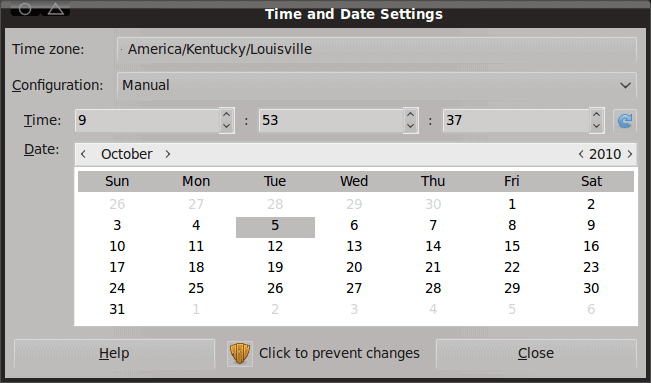
Now, let's take a look and see how this is done from the graphical front end. To do this click System > Administration > Time and Date. When you do this you will have to click the "lock" button to unlock this tool for changes. When you click this you will have to enter your sudo password. Upon proper authentication you will then be able to use the drop downs for hours, minutes, and seconds. When you change the time, you only need to close the tool, no saving required. NOTE: You can also change the date as well as the timezone with this same tool.
Final thoughts
Don't be caught in the future or the past on Linux. Make sure your time is correct so you aren't confusing those receiving your emails (unless you want them to think they are receiving emails from "future you".)
Advertisement












This works on lubuntu 13. Thanks
I set my system time on ubuntu using sudo date and it set it fine. It now displays the time in the past that I wanted. When I go back to try to change it into the present it won’t let me… says my password is incorrect..
Sorry, try again.
[sudo] password for :
Sorry, try again.
.. so on
I tried gksudo time-admin & and also to System > Administration > Time and Date but none of those gui-based tools accept my sudoer password either. I’m fairly sure I’m typing it correctly… tried several times. I’m getting a bit frustrated… I don’t want to live in the past anymore and yet my box is not cooperating :-) any help would be appreciated
I am facing this bring problem in Ubuntu and Mint. Whenever I connect to the internet my time gets changed to Indian Standard Time (I like to keep my time 10 minutes ahead) and I have to reset it again once I have disconnected from internet. I have tried many solutions including unchecking the option to sync the time with the server but none of them have worked for me. What should I do?
On m Debian systems (this should work in and Linux system, including the *buntus), I edit root’s cron to get its time and date from the internet.
Install the ‘ntpdate’ package:
shell$ sudo aptitude install ntpdate
Then edit root’s cron:
shell$ sudo crontab -e
And add this line:
* */6 * * * /usr/sbin/ntpdate 128.101.101.101 2>&1 /dev/null
and save your cron. That will update six times per day (every four hours) your system’s time from the NTPd server at the University of Minnesota (USA), with a nice IP Address to remember. There are plenty of other NTPd servers out there to use as well.
You can also manually run the command to make sure it works:
shell$ sudo /usr/sbin/ntpdate 128.101.101.101
6 Oct 07:39:03 ntpdate[18107]: adjust time server 128.101.101.101 offset 0.027094 sec
Thanks very useful. Cant live in the past but would be fun to go into the future. :)
In the ‘Appointment and Tasks’ clock in the menu bar I have set India, UK & US under location. This helps me get the ‘local’ time on my Laptop when I fly. The good thing is Ubuntu lets you do this in just 2 clicks.