
Two Windows 7 Taskbar Speed Up Tips

The Windows 7 Taskbar is one area of the Windows 7 operating system that Microsoft put lots of improvements in. Two of the features that have been introduced and revamped are Jumplists and taskbar previews.
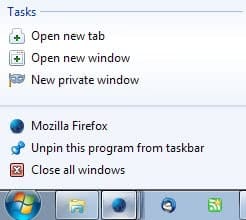
Jumplists display often used program features and links to recent documents. Not every software supports Jumplists yet, but it is likely that support will increase in the coming years. Many Microsoft applications among others support them on the other hand.
If a program does not support jumplists, a default jumplist with little options is displayed instead.
The Microsoft Excel Jumplist for instance displays options to create a new Excel document, or open one of the previously accessed spreadsheets. That's more comfortable than having to either open Excel to load the spreadsheet, or locate the spreadsheet on the system to load it in the program.
Taskbar previews display thumbnail or text previews of all open instances of a program when the mouse cursor hovers over the item.
Tip 1: Faster Task Switching
Users who want to switch between open instances of a program need to move the mouse cursor over the icon in the Windows 7 Taskbar to make the instances visible, before clicking on one to bring it to the front.
It may be necessary sometimes to switch between multiple open program windows in rapid succession. This cannot be done efficiently the standard way. A faster option is to hold down the Ctrl key on the keyboard before clicking on the taskbar icon itself. This switches to the next open program window with each click.
Tip 2: Faster Jumplist Selection
Jumplists sometimes display lots of entries, and it can take some time to find the desired action or recently opened document or file in the listing.
A faster way of accessing specific items is to press the first letter of the file name or function after the jumplist has been opened. This automatically moves the selection to the first matching entry, which can then be accessed by pressing Enter.
Advertisement















Basic tips but useful as always. Thanks Martin.
You are welcome Ritwick, I really love those little tips, as they often help to perform tasks faster.