
Fixing Error Code 0x80073cf9 in Windows 8

Every week I'm spending time in Windows 8's store to discover new apps for my weekly column over at Betanews. I look through all new apps that have been released in the week, install those that sound promising to test them on the PC.
Yesterday when I tried to install two free apps from Windows Store Windows threw the error code 0x80073cf9 instead. The applications would not install at all, and the only options provided by the installation dialog was to try again or to cancel the installation.
After trying again three or four times, and noticing that some apps installed just fine, I made the decision to investigate the issue closer. I first thought that the error message may be related to country-locked apps that were offered to me in error, but once I started to read forum posts I came to the conclusion that this was not the cause. Some users received the same error code when they tried to update apps that were already installed on their system.
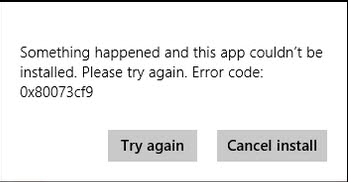
The full error message reads:
Something happened and this app couldn't be installed. Please try again. Error code: 0x80073cf9
Note that the message may be different if you are trying to update an application instead.
Resolve the issue
What worked for me right away was a restart of the system. Note that I did a full restart, and not a power down and power up which does not really change anything in regards to the situation. I restarted the PC, went back to Windows Store afterwards and clicked on the Try again button. This time data was downloaded almost instantly to the PC and the application installed just fine as a consequence.
While this worked fine for me, it does not necessarily mean it will resolve the issue on your end as well. There are other solutions that you can try to resolve the error code and install or update applications in Windows 8.
Here is a list of those solutions:
1. Sync the app license
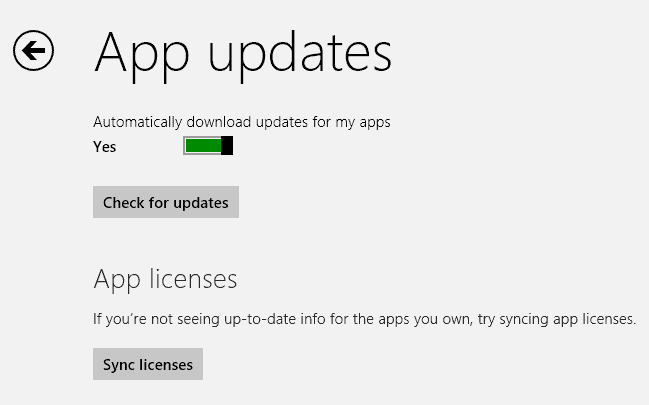
- Press the Windows key to go to the start screen.
- Tap or click on Store to open Windows Store.
- Press Windows-i to bring up the settings.
- Select App updates from the options.
- Click on sync licenses here.
2. Reinstall the application
- Press the Windows key to open the Windows 8 start screen.
- Locate the application here.
- Right-click it and select uninstall from the options.
- Click on Store on the start screen.
- Enter the name of the application .
- Select it from the search results.
- Click on the install button.
3. Run the Modern UI Apps troubleshooter

- Download the program to your Windows 8 installation.
- Run it once you have downloaded it.
- On the first screen, select Advanced and uncheck Apply repairs automatically on the next page.
- Click next and follow the instructions.
- The program will check the system for app related problems to fix common issues that may cause the error message.
I would not recommend the following unless you experience issues updating or installing all apps in Windows 8.
4. The AUInstallAgent folder
- Open Windows Explorer and go to C:\Windows (assuming that this is the directory where you installed the operating system in.
- Check if the AUInstallAgent folder is present in the directory.
- If it is not, create it with a right-click and the selection of New > Folder. You can also use the keyboard shortcut Ctrl-Shift-N for that.
- Reboot the PC afterwards.
5. Temporarily disable security software
Try disabling security software temporarily to see if it blocked the updating or installing of apps on the operating system.
6. System Restore

If updates or installations worked the last time but not this time, and you have made modifications to the system in the meantime - installation of new software, Windows updates - then you may want to consider using the operating system's system restore feature to go back to a previous system state.
- When on the desktop, press Windows-x and select System from the context menu that pops up in the lower left corner of the screen.
- This should open the System control panel applet.
- Select System protection on the left.
- Here you should see a System Restore button that you need to click on.
- Follow the wizard and select a system restore point that you want to restore.
- Note that software and updates that you have installed on the system after that date and time won't be available anymore. Reinstall them in this case.
7. Reset / Refresh
This is your last resort if you have tried all other solutions and they all failed to resolve the issue. You can refresh or reset a Windows installation. I would certainly wait at least one or two days before I'd refresh or reset the PC though, as it can very well be an issue on Microsoft's end as well or a routing related issue.
Advertisement















If you see the 0x80073cf9 on a mobile phone, the problem is that you are trying to install on phone memory instead of mem card. Switch to memcard and it will work for you like it worked for me. Procedure here
http://techwonda.com/fix-0x80073cf9-windows-app-store-error/
Finally a solution that really works!!!!! Thanks man. :o)
Thanks a lot for the solutions! But even after I tried steps 1, 2 and 3, nothing happened! I also checked if the folder was there, and it was. I also tried disabling my security softwares and I do not want to refresh or restore my computer. Please help!
Just so you know, the application I am trying to install is Asphalt 8: Airborne. I actually wanted to update it but it always said pending at the installation window. After i got fed up of waiting, I set off to reinstall the game as my progress was connected to my XBox account. But now it does not install!
3rd step worked
Finally something worked. Thankyou.
After trying a lot of solutions and not finding it on Microsoft help for apps, you gave me the right link.
Step 3 worked for me, thank you and greetings from The Netherlands :)
PROBLEMA NA LOJA WINDOWS 8 e 8.1 – Erro 0x80073cf9 – SOLUÇÃO:
1) C:\Windows
2) Apague a pasta AUInstallAgent
3) Criar PASTA chamada AppReadiness
SEM PRECISAR REINICIAR, PODE IR NA LOJA E INSTALAR OS APPS
Nothing worked for me. I ended up doing a full reset of my tablet. :(
Hi. I had the same problem and none of these solutions helped. CC cleaner portable helped me after cleaning everyting including the registry.
thank you very much!!! the 3rd solution worked!
Hi, here’s another solution to try:
Check C:\Program Files\ for a folder named “WindowsApps”. If it isn’t there, create it, then try to install again.
Good luck!
Thanks, Worked for me!
WOW worked like a charm
Thanks, Luzan Baral. Worked just great ;)
Thanks for the steps.
My AUInstallAgent folder was missing, and I ran the Modern UI troubleshooter.
Its a shame that the Microsoft could give a more meaningful error….
This problem most probably is face by all of us while installing new apps or while updating the existing app on Windows Store. I faced same problem with error 0x80073cf9 and searched on web for my appropriate answer.
Why go with long method when you can make it working in few steps? I found a great solution to that thanks to such blogs for doing there best on helping searchers like me.
A trick on How to fix the error code 0x80073cf9 while installing windows store app on Windows 8 Surface pro.
Turn off Antivirus software and Firewall temporarily.
Reset store cache: Press Win + R, type WSReset.exe and hit enter.
Use File explorer to open C:\Windows folder, and re-create an “AUInstallAgent†folder if it is missing.
Open command prompt (Admin), type the “sfc /scannow†command and press Enter to run System File Checker.
Open Registry Editor and delete the whole OLE folder in HKEY_CURRENT_USER\Software\Microsoft\
See here for more http://dothisbest.com/how-to/fix-error-0x80073cf9-when-install-store-apps-in-windows-8-surface-pro/
Thank you very very much dear Luzan Baral for your easy steps.. That is fixed my error 0x8003cf9 permanently .. Peshawa from Kurdistan of Iraq.
Martin,
You mention doing a “full restart.” I’m having some restart-related problems, and would appreciate if you would give some detail as to what constitutes a Full Restart.
What I mean by that is the following. If you simply shut down Windows 8, it will cache some information so that they are loaded from crash and not renewed on the next start of the system. A restart on the other hand loads everything anew instead. An easy way to restart is to press Windows-D while on the desktop and then Alt-F4. This should open the shutdown menu.
Thanks for the info, Martin.