
Display Chrome extension permissions after installation

When you install browser extensions in Google Chrome, you are presented with a permissions request dialog before the extension is added to the web browser.
Here you see all permissions that the extension requires so that you can make an educated decision whether to install it or not. It is likely that a large part of users clicks on the add button in the dialog right away without analyzing the permissions the extension requires first.
It is a good idea to verify that requested permissions are required for functionality. An extension that works on a single site, e.g. Reddit or Facebook, should not request access to all sites usually.
Google Chrome did not provide its users with options to look up permissions of extensions in the browser after they have been installed. The only option back then was to visit the Chrome Web Store page of the extension to check the listed permissions.
While that was certainly a possibility, it was not really that practicable as you need to open the Chrome Web Store manually, search for the name of the extension, find it there, and switch to the details tab to check the access permissions.
Google added an experimental flag to the browser in 2013 that would display extension permissions on chrome://extensions when activated.
The company has enabled the feature natively so that it is no longer necessary to use an experimental flag for that.
All Chrome users have to do is open chrome://extensions in the Chrome browser to get started. The page lists all installed extensions.

Select the details link next to the extension that you want to check and scroll down until you find the Permissions section on the page; there you find listed all extra permissions that the extension requested.
Tip: you can limit the execution of Chrome extensions.
Use the method to check permissions for any installed Chrome extension. There is no central management page for all extension permissions that Chrome extension requested though.
Old information (applicable only to older versions of Chrome)
Recent versions of Google Chrome
, I have tested this in the Canary build, come with an experimental flag that adds an option to the browser to look up extension permissions for each installed extension locally.
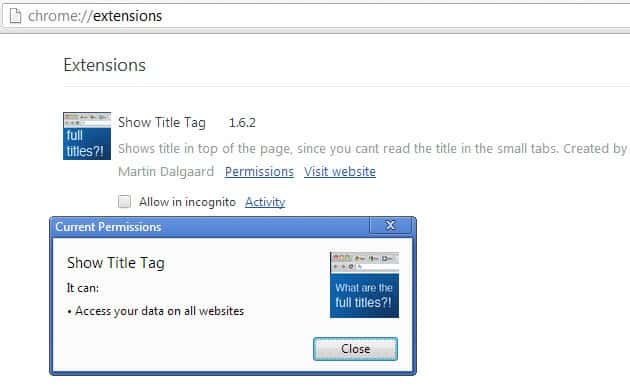
The feature adds a link to open the permissions again on the page, as well as an activity link on the same page. The permissions link opens the very same pop up that users get when they install the extension in the browser. The only difference here is that you can only close the dialog at this time.
The activity link on the other hand displays activity of the extension when it interacts with websites and services. This can be really helpful for developers to debug their extension but also for users who want to find out where and how extensions interact with sites.
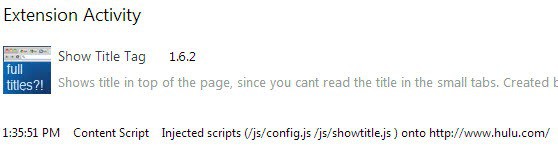
The feature needs to be activated before it becomes available. To do so enter chrome://flags into the browser's address bar and tap on the return key afterwards. Press F3 and enter Enable extension activity UI into the search form. Click on the enable link underneath it afterwards and restart the browser. The new feature becomes available afterwards and you can access it on the extensions page.















I enabled the flag, and while there are now “activity” links available, the “permissions” links are not showing up. Do you know why this may be?
“When you install browser extensions in Google Chrome you are presented with a permissions request dialog before the extension is added to the web browser”
I didn’t know that Chrome had this feature. Of course, I don’t use Chrome, but I would love to see this in Firefox.