
Open all images on a page in a single tab in Chrome

If you are browsing on sites like 4Chan or Reddit regularly where dozens of images get posted on a single page, you probably have discovered ways to make the browsing more comfortable. Maybe you installed a browser extension like Multi Links for the Firefox web browser or LinkClump for Google Chrome, or an image related extension to download images posted directly to your computer.
Img2Tab is another option that you have for Chrome. It introduces an interesting option, that is, the ability to open all images on or linked on a page in a single tab in the browser. All it takes is to install the extension from the official Chrome extensions repository. The extension works automatically on every new page you open while old pages need to be reloaded once before the options become available.
To use it afterwards, right-click anywhere on the page you want to use it on and select one of the im2tab options it makes available in the context menu. There you find the following four options:
- Actual - Opens all images displayed on the page in new tabs in the web browser. The extension displays the amount of tabs that will be opened if you proceed. Depending on the page you are on, this can be quite a few.
- Actual single-tab - Opens the same images as the option above, only this time, they are all opened on a single new tab and not multiple tabs.
- Linked - Will open all images linked on the page you run the command on. Will open those images in individual new tabs that get opened. Displays a warning before doing so as well.
- Linked single-tab - This opens all linked images on the page in a single browser tab.
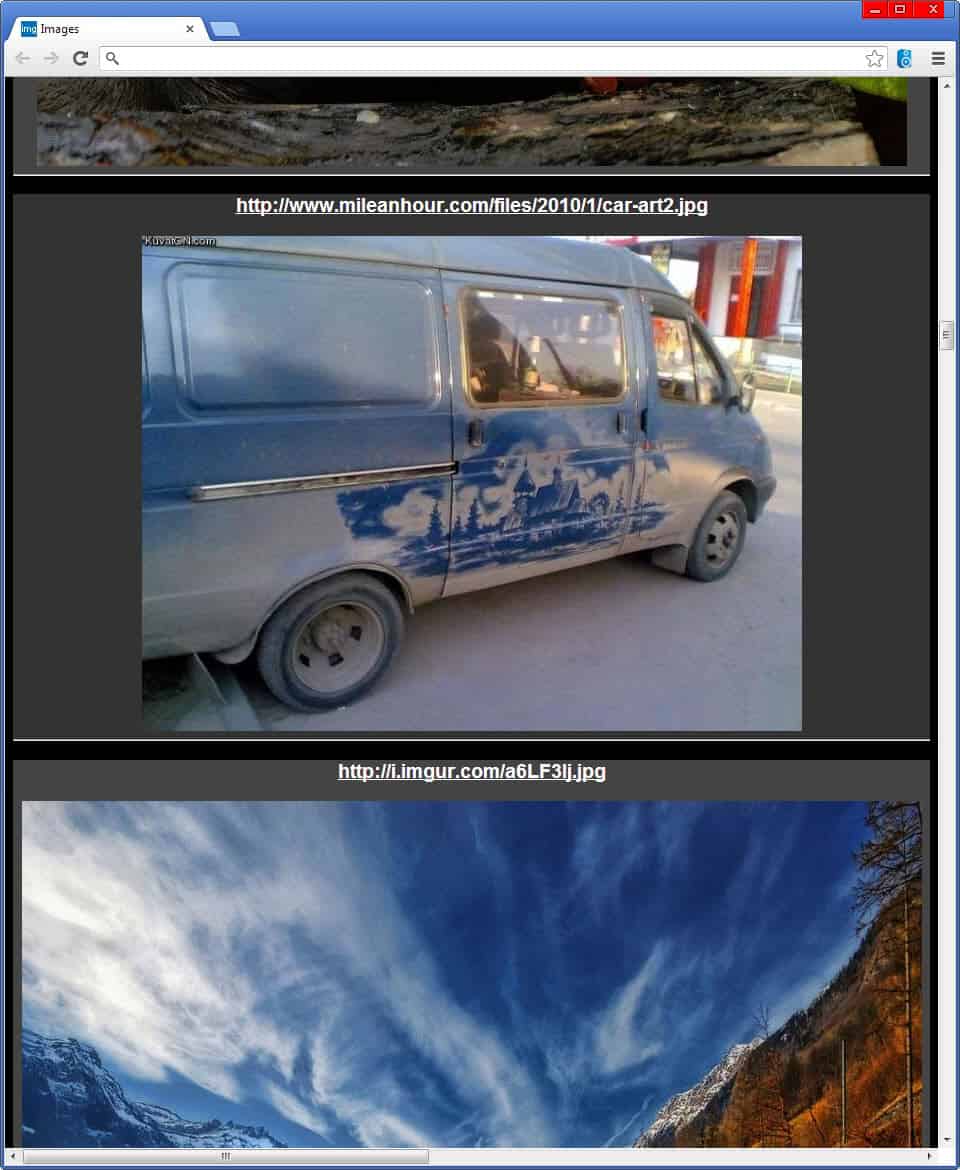
It may take a while before all images are opened in the new tab or tabs depending on the size and number of images that you open this way.
Verdict
The option to load all images on a single page is certainly an attractive one as it may improve image browsing considerable. Instead of having to browse each image one by one, you can simply select the option to load them all at once in a tab, look at all of them there, download some if you want, and browse to the next page on the site to repeat the process.
















how you do all images to one tab? so it can be printed eg 52 images here: http://imgbox.com/g/VfAbVByXT3
Browse Images
“NOTE: There won’t be any upgrades in the next time. To fulfill Mozilla add-on quality standards a complete rewrite of the addon is necessary as the source code is old and was written at the time of Firefox 2. And I have no time to do this, I have other priorities, I’m sorry.”
I’m sure that it still works, but I’d rather use one that is maintained.
img2tab is a great add-on and has most of the features that Browse Images has. It doesn’t have a save all feature, but there are ways to do that.
One is Tools > Page Info or right click on a page > View Page Info > Media > select all Save As…
That can be done with any page without an add-on.
Another is by using the Web Slide Show add-on’s save images feature.
https://addons.mozilla.org/en-US/firefox/addon/web-slide-show/?src=ss
Martin that is an excellent add-on that I’ve used since it was released.
It’s worth reviewing.
And about this extension?
Browse Images
https://addons.mozilla.org/en-US/firefox/addon/browse-images/
It gives you more options such as open all images in the current tab, open all images in a new tab or open every image in a separate tab.
lainiwaku is right.
It’s been around since “11. I’m not sure how I missed it, but thanks to your article and readers, now I have it. :)
https://addons.mozilla.org/en-us/firefox/addon/img2tab
That’s exactly what I needed. Browsing became better the instant I installed this. Works like a charm.
there are the same on firefox, with the same name