
Remove identifiable information from Android photos before sharing

When you take photos with a digital camera metadata or EXIF data is added to it automatically which can reveal a great deal about the digital camera that was used to capture it and the location. Information include the manufacturer and camera model, resolution, if a flash was used and the exposure time. While that may not sound too bad, it can also contain location-based information and the time the photo was taken as well as a unique ID for the device.
If you share photos that you have taken with your Android camera online, the EXIF data is usually included; others may use the data to profile you. Someone could create a profile of locations you have been for example or find out where you are likely right now by analyzing the location data of the latest photos that you have uploaded to the Internet. The latter happened to McAfee for instance who was caught by the authorities thanks to a photo's metadata.
If you do not want your information to be published online, you need to strip the data from the photos before you share them on sites like Facebook, Twitter or any other site. How you do that? Glad you asked.
The easiest way to do so is to use an application as it enables you to strip the metadata without having to rely on a desktop computer or tablet to do so. The Android store lists a couple of apps for that but most either limit what they remove from the photos, are not free or tamper with the photo in other ways.
Update: Image Privacy is no longer available, it was removed from Google Play. You may use an app like Photo Metadata Remover instead which scrubs metadata from images as well. End
Image Privacy review
Image Privacy is a free app for Android that ships without a graphical user interface. To use it, send the photo to it using the phone's share feature. Select share and then the strip metadata option that it adds to the menu.
You will notice that the share menu pops up again shortly thereafter. Here you select the destination for the image which can be any app or location that is listed in the menu. You can for instance send it to Twitter, Facebook or Google Plus, upload it to Picasa or Flickr, or save it to your Dropbox account.
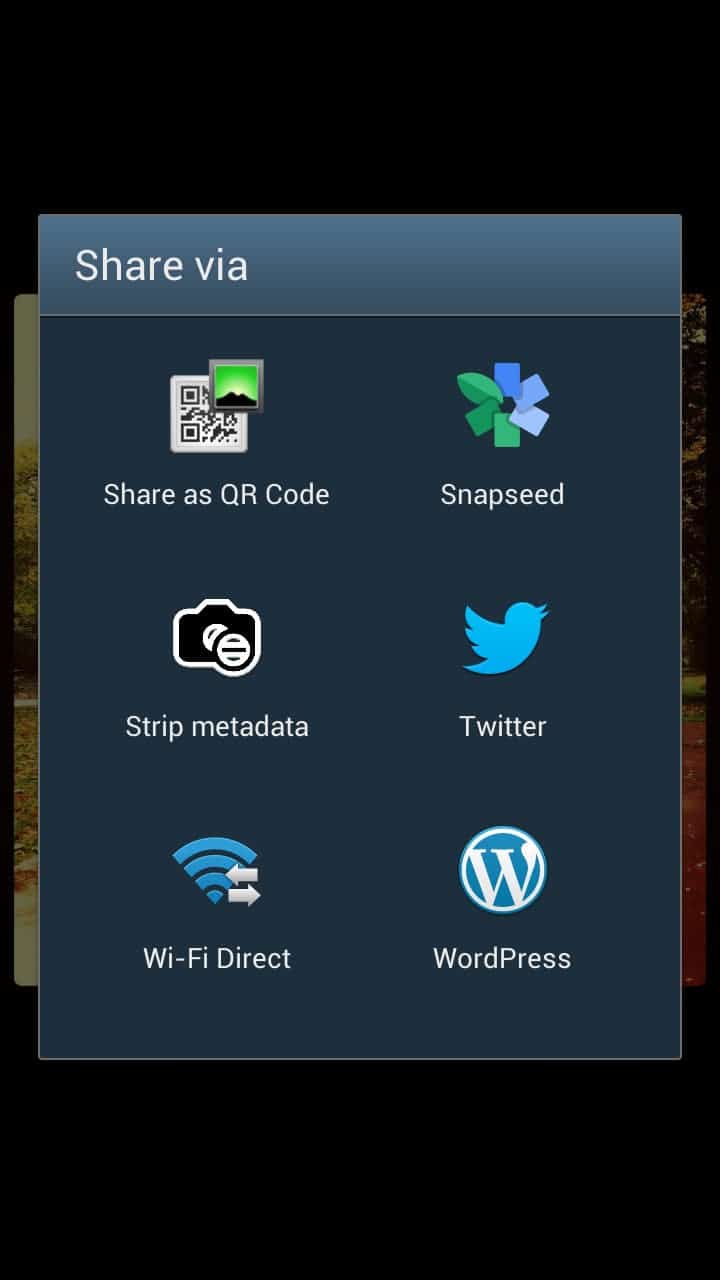
While it is not an automated solution, it is the next best thing. You may need a couple of shares to get used to the process but once you do, it should not slow you down that much anymore.
The application does not require an Internet connection and requests only access rights that are directly related to its functionality.
If there is something to criticize it is the lack of feedback and the missing option to define the new name of the processed image. As it stands, _stripped_ is always added to the beginning of the file name. An option to change the prefix or rename the processed file would be welcome.












Yes it does limit it to the screen resolution, & IMO, is usually a good thing as most folks send far too large images of crap. I often use this very quick method of resizing an image to send out, vs. using a Photo Editor app like Photo Editor (which is also works with text & metadata but more complex)
https://play.google.com/store/apps/details?id=com.iudesk.android.photo.editor&feature=search_result#?t=W251bGwsMSwxLDEsImNvbS5pdWRlc2suYW5kcm9pZC5waG90by5lZGl0b3IiXQ..
& then just rename the screenshot it in QuickPic & share.
Also just came across this app called PixelGarde. Apps for Android, iPhone, PC, Mac.
http://pixelgarde.com/#organize
Pixelgarde is nice, but I found another android app – “GPS Privacy”, that removes the GPS coordinates automatically. You just define your “Privacy areas”, and your pictures won’t have GPS tags when taken in these areas. Very useful if you have the pictures uploaded automatically online. Hope this would be helpful for you as well!
You could also just make a screenshot of any image & send that. This only includes the new image size & the date of the screenshot.
That’s limiting the resolution of the image to the screen size I presume?
Thanks to the varied tech-savvy posts and to the concise writing, this is one of my favorites sites and a daily must.
Mr. Brinkmann, keep on writing! (:
Thanks for the compliment. Will do!