
View and Extract File Icons With Thumbico

File and program icons distinguish different file types and applications visually from each other. Users come into contact with icons every time they use the computer, but only a few would consider changing or modifying program icons on the system to customize the display of certain file types on a computer.
I can only think of two user groups who would need the to view, modify and extract file icons: first users who like to install custom themes and total conversions. Default icons might not always match the installed custom theme, which is why some users go the extra mile and change their computer's program and file thumbnail icons as well.
Developers are the second group. They might want to experiment with different program icons for their applications to find the most suitable one.
Thumbico is a free portable software for Windows that acts both as an icon viewer and extractor.
Thumbico Review
You can drag and drop icons into the program interface to view them in the selected resolution. One of the features of Thumbico is that it can display icons in a larger resolution than Windows can.
You can change the resolution in the application's top menu bar, with a right-click and the selection of Make Bigger or Smaller, or with the keyboard shortcuts Ctrl+ or Ctrl-. If you ever wanted a larger than life version of the Firefox logo, now is your chance to take a look at it.
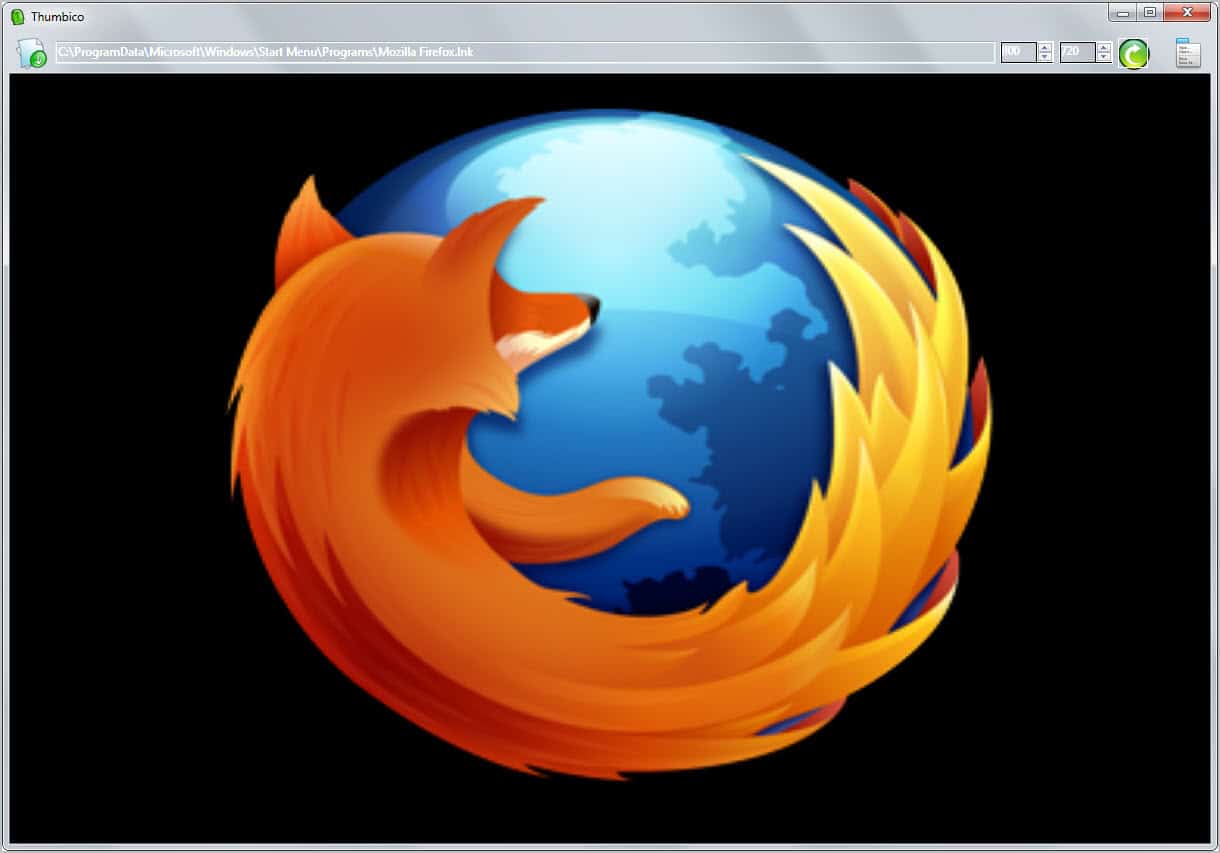
Standard icon sizes are available through the right-click context menu and the keyboard shortcuts Alt+ or Alt- as well. The latter cycle through all available icon sizes from 16x16 to 512x512 pixels. If you want precise sizes, you can also enter the desired width and height values manually.
Thumbico supports a couple of useful extra features. You can rotate and flip images, or convert them to grayscale format.
Icons can be saved in the current display size and as various formats including bmp, gif, png and jpg. You can alternatively copy the image to the Windows clipboard to paste it directly into another application.
The image is saved with the background color that is displayed in the program interface. You can change the color or enable glass mode which adds transparency to the image if you save it in a format supporting transparency.
Most program features are accessible via keyboard shortcuts for fast access; great if you use the program regularly and want to speed up things significantly.
Closing Words and verdict
Thumbico is a useful program for users who want to customize icons on the operating system and developers who want to test how icons look in different sites and save icons in various resolutions.
Windows users can download the latest version of Thumbico from the developer website.






















Pity that it needs Windows Vista (anyone still using that?) or Windows 7. I’m probably not the only one still running Windows XP…
I am prone to change icons I do not like.
Some of the Windows default icons are not
easy on the eyes, like Unknown File and Text.
I started with changing those to good-looking icons.
On video files I have different colors of the same custom
icon for different file types even though they open with
the same program identifying the file type visually.
I have even altered executables to change program icons.
I will definitively add this program to the tool chest.
Nice. I’m one of those people who change their icons to match their themes. I even make my own. I’m thinking of giving this a try.