
How To Disable WLAN Background Scans

Some Windows users who are connecting via wireless lan to the Internet may have noticed regular ping spikes and sometimes even disconnects due to an automated background scan. Especially Windows Vista users have been plagued by this issue, but it has also been reported by users running Windows XP or Windows 7.
You can test if your wireless connection is having regular lags by opening the Windows command line (Windows-r, type cmd, hit enter) and use the ping command to ping a local or remote IP address (e.g. ping -t 192.168.1.1).
If you see time spikes you are affected by the issue.
Reply from 192.168.1.1: bytes=32 time=1ms TTL=64
Reply from 192.168.1.1: bytes=32 time=1ms TTL=64
Reply from 192.168.1.1: bytes=32 time=1ms TTL=64
Reply from 192.168.1.1: bytes=32 time=1ms TTL=64
Reply from 192.168.1.1: bytes=32 time=1355ms TTL=64
Reply from 192.168.1.1: bytes=32 time=2ms TTL=64
Reply from 192.168.1.1: bytes=32 time=1ms TTL=64
The WLAN AutoConfig service is responsible for the scans which are executed even if the computer is already connected to a wireless network. Users have reported connection issues for up to five seconds during scans which is especially problematic for Internet gamers and users who use streaming media services.
It is not possible to disable the WLAN AutoConfig service right away, as it is needed to establish the connection.
The free software program WLAN Optimizer resolves the issue by disabling background scans once a wireless connection has been made.
The portable program displays all options in two tabs in its interface. The status tab displays a pulldown wireless network adapter selection menu and the status of the tweaks the program offers.
The settings tab displays options to enable background scan and streaming mode. It is not recommended to disable autoconfig in the menu, but the option is available.
WLAN Optimizer is however not the only software that disables wireless background scans. The free tool VBGScan is also capable of disabling the scans. It has been developed for Vista, and it is not clear if it works under Windows 7 as well.
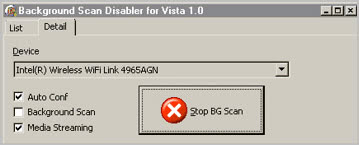
Just use the basic interface to configure the software. It offers the same features as WLAN Optimizer. (via)
Advertisement















Really not sure if this program is actually working with Windows 10 Version 22H2 (b: 19045.2486), and the other program listed, VGBScan, throws error 5507 constantly with one of my adapters, and doesn’t seem to reflect any changes when settings are altered.
Have tested both programs under many different compatibility parameters, as well as naked without any compatibility settings applied. I can’t seem to find any other solutions being posted for this in 2023, beyond outright disabling WLAN Autoconfig service… This sucks. :(
Will be attempting this with windows 10 in 20 minutes;;
Haha, I have attempted this now, referring to “WLAN Optimizer”. According to the program, background scanning of wireless networks already was disabled. However, available networks are shown when clicking on the wireless network icon on the taskbar, with their order even rearranged according to their signal strength. In my view this would not be possible without scanning these networks, so this raises the question of whether the information displayed by the program is accurate. It could be if this only happens when this section is accessed by the user, a foreground scan, so to speak, while this window or panel is open as opposed to a recurring background scan…
You can run ping google.ca -t in the cmd window and watch the ping times as you click on your wifi available connections(wifi symbol task bar bottom right). If ping times spikes when you do this it is doing a quick scan which causes lag spike if you are gaming is bad. Not sure if some versions of windows does a background scan for these once in a while or not but it does interrupt packet transfer when this happens.
The programs you mentioned Martin, are they just run once because if just makes some registry changes or do they need to run in the background?
IIRC, they need to be run every time a connection is established.
Especially Windows Vista users have been plagued by this issue, but it has also been reported by users running Windows XP or Windows Vista.
At the end, you mean probably Windows 7 :)
You are so right, corrected. Thanks!