
Change File Extension Icons With Types

Microsoft has removed the useful File Types tab in the folder options of Windows Explorer in Windows Vista and Windows 7. The File Types menu displayed a list of known file extensions along with editing options.
Types is a lightweight Windows program to modify file extension properties under Windows Vista and Windows 7 (it actually is compatible with Windows XP as well). The application displays a list of all registered file extensions in alphabetical order in the main program window.
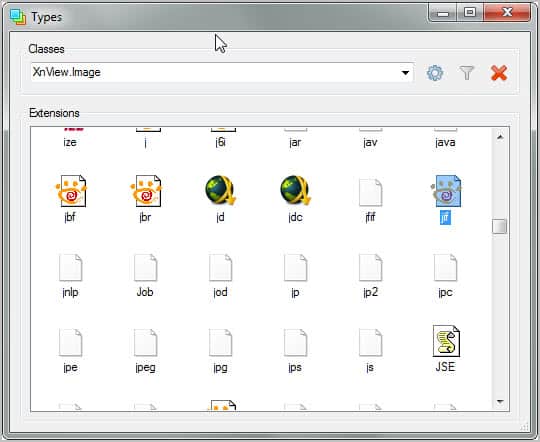
Each file extension is displayed with its current icon and the file extension text itself. A double-click opens the tabbed editor window to modify the file type's properties. The Classes pulldown menu at the top can alternatively be used to select a file extension. A click on the edit button on the menu's right opens the properties window if this option is chosen.
A filter is provided to quickly display only the selected file type in the program window.
The tabbed editor displays options to change default actions, class specific settings or the icon of the extension. The icon menu displays the current icon along with a selection of icon alternatives. A double-click on an icon displayed in the window sets it as the default file extension icon.
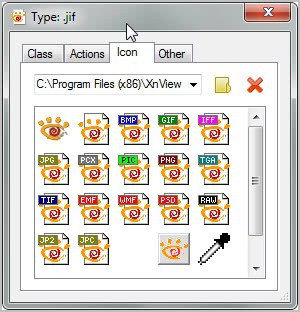
A browse button is available to select a different icon from the computer system. Users who want to pick a default Windows system icon need to point the browser to C:\Windows\System32\shell32.dll to do so.
Changes take effect immediately without need to restart or kill the explorer.exe process.
Types functionality does not end here. You can use the program to create new file extensions or delete existing ones.
An alternative is the Nirsoft application File Types Manager which offers a similar functionality.
Types is compatible with all recent versions of the Windows operating system. It requires the Microsoft .Net Framework 2.0.
Advertisement



















I took a look at the install via sandboxie (UPX used to crypt the install – almost never a good sign). I think that is best in this case to copy the installed app in the sandbox for two reasons:
1. The program is portable (assuming you have .net 2 installed) and;
2. It has an app called proxy.exe that does what? Obviously the app does not need net access so proxy must be used for something else…
I’ve run the app a few times now (after copying from sandboxie) and haven’t had any problems without having proxy.exe around.
Another example of functionality that disappeared after XP. Thanks for the information on how to get it back.
Are you guys magicians or what? I’ve been searching for exactly this kind of program when I stumbled upon your article!