
GameSton, Backup Game Saves

A corrupt game save for a single player title can set you back quite a bit when it comes to game play time. Even worse, you may be demotivated to replay the stages of the game that you have already played and decide to stop playing the game instead.
Some games, especially online games, save games on servers that are connected to the Internet. This minimizes the risk of save game corruption and may also make available those saves on other computer systems. It also reduces the probability of modifying game saves to cheat. While it reduces the issue, it does not take it away entirely as other factors may play a role, e.g. the version of the game or game updates.
I have reviewed several programs to backup and synchronize game saves in the past. From Save Game Backup and Game Save Manager to Save Game Profiler which allows gamers to create multiple profiles for game saves (perfect if multiple users are using the same PC) and Game Anywhere which is a save game synchronization software.
Gameston
The latest addition is GameSton, a program to back up game saves easily. Windows gamers can use the program to create backups of their local game saves.
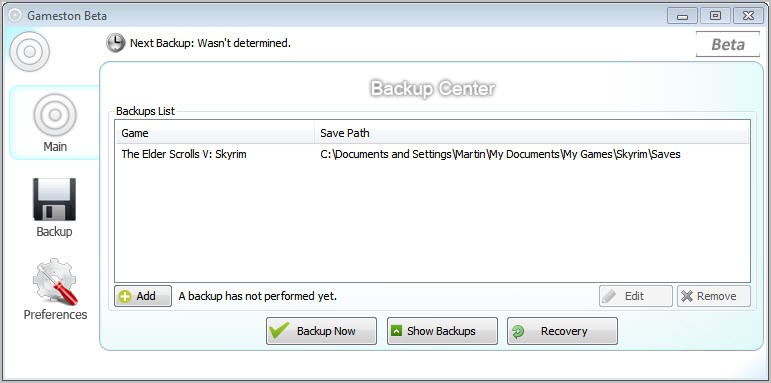
The list of games to backup is empty on first start of Gameston. A click on Add opens a wizard that walks you through the process of adding new game saves to the backup list.
The program identifies some, but usually not all, of the games installed or available on the computer. The identification found several games on my computer that were not installed anymore. The reason for this is that some game uninstallers do not remove save game directories when a game is uninstalled. Other games that were properly installed, like Warcraft III, were not identified correctly.
Game saves that are on the computer but not recognized automatically can be added manually with a click on Add Customized in the add save game dialog. This basically opens a prompt where you need to enter a name for the game and a path on the system where the game's saves are located.
Backups can be run manually with a click on Backup Now, or on schedule. Scheduling is available under the Backup tab in the main application window. Here you can select backups to run every one, three, twelve or twenty four hours.
Previously backed up game saves can be restored from the main interface again. This triggers the recovery wizard where you need to first select the backup directory where the save games are stored in and then one of the available saves to be recovered.
GameSton is a handy program to make save game backups. The application requires the Microsoft .Net Framework 2.0 and works only with game that use file game saves and not with games that save progress in the Windows Registry.
Update: The Gameston website is no longer available. We have uploaded the latest release version of the game backup software to our own server for archiving purposes. You can download the program with a click on the following link:Â (Download Removed)
We don't support the program and have done so only for archiving purposes.





















Just mail us, we will guide you over there.
Gameston doesn’t find all of the installed games because of the Beta stage. The list is under construction, and it needs the users’ help.
Want to help?
support@gameston.net
I would like to help. How do I get approved?
Thanks. I’m going to try this app or one of the others you’ve reviewed. My stubborn Win7 system forgets to save games. #@%?! Have to say it: I do NOT have that trouble on my XP system. :)