
How To Turn Off Automatic Updates For Individual Firefox Add-Ons

Automatic add-on updates can be a fine thing. You save some time and make sure that your add-ons are always up to date. That's great to resolve security or stability issues as soon as possible. It can however also mean that you get feature additions that you did not want or expect.
I just read about the Download Statusbar add-on fiasco over at Donation Coder and the add-on's reviews page at the official Mozilla website. According to information posted on both sites, the popular Firefox add-on Download Statusbar turned adware for a period of time before it was pulled from the add-on repository only to be reinstated without the sponsorship mechanism.
Regardless of that, it shows that automatic updates can cause problems. Sometimes you may want to block add-ons from being updated automatically. Maybe because you know that a new version that is already out is causing issues on your system or adding unwanted features, or because you want to research each update before you install it.
The Firefox web browser offers two options for users who want to customize the automatic add-on updating mechanism of the browser.
Option 1: disable automatic updates for all extensions

You can block all extensions from being updated automatically in the Firefox web browser:
- Load about:addons in the browser's address bar; this opens the list of installed extensions and their status.
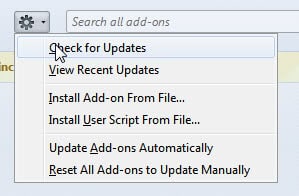
- Click on the cogwheel icon next to search and select the "Update Add-ons Automatically" option there to toggle it. The option is disabled if you don't see a checkmark icon in front of it.
Firefox blocks add-on updates from that moment on so that new versions of extensions are not delivered to the browser anymore automatically. You need to update automatically, or allow specific extensions to update automatically.
Allow or disallow automatic updates for specific Firefox add-ons

A click on the "more" link next to any extension listed on about:addons displays information and some options on the page that options.
The "Automatic Updates" listing defines whether that particular extension is updated automatically or not in Firefox.
Default refers to the global preference that you set above. You may set any extension to "on" or "off" there individually.
On means that Firefox will check for updates and install them automatically, off that the browser won't do that.
The "check for updates" link is only displayed if automatic updates are disabled in Firefox.
Old information below
Update: the first option changed in recent versions of Firefox. You do not find the option that handles automatic add-on updates anymore in the Firefox Options. Instead, you need to load about:addons in the browser, click on the settings icon next to search at the top right of the browser, and check or uncheck "update add-ons automatically". End
The first option is to disable automatic add-on updates completely. This is done under Options > Advanced > Update. Here you need to remove the checkmark of the Add-ons listing under Automatically check for updates to.
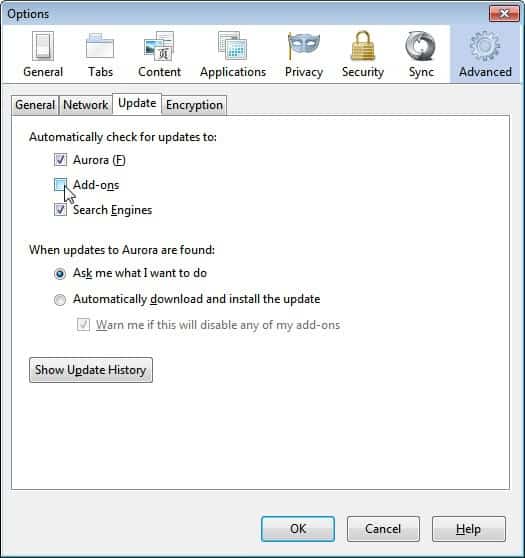
For extra protection, make sure that Ask me what I want to do when updates to Firefox are found is enabled.
Sometimes you want to make sure that only some installed add-ons do not update automatically, or that some do if you have selected the do not check for automatic updates option mentioned earlier in this guide.
Open the Firefox add-on manager. You can do that by entering about:addons in the address bar. All installed add-ons are displayed under Extensions there. To configure automatic updates for a specific add-on do the following. Click on the More link next to the add-ons description.
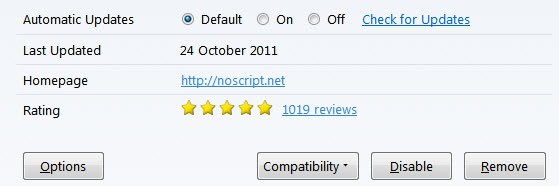
Look for the Automatic Updates listing on the page. Default means that it will use the global automatic update options of the Firefox options. You can set automatic updates to on or off instead. It is furthermore possible to check for updates manually with a click on the link of the same name.
You can also click on the settings button at the top to perform various operations, including a check for updates, reseting all add-ons to update manually or enabling or disabling add-on updates automatically.
To paraphrase. Firefox users can keep automatic updates turned on and turn off updates for specific add-ons only, or turn off automatic updates and turn them on for trusted add-ons instead.
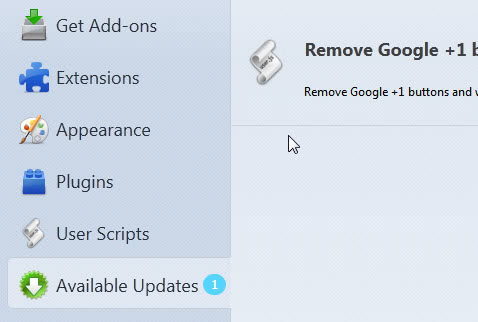
Firefox users who have set their add-ons to update manually only will see a new listing in the add-ons manager. Available Updates list the available updates for all add-ons set to update manually.
Have you set your Firefox add-ons to update manually or automatically?















This is even more important for users of older Firefox forks, e.g. my current fave, Basilisk. While it can occasionally run some WebExtension plugins, often, its only older ones; or more commonly, great older ones like Session Manager and Add Bookmark Here ² (as opposed to the reduced-featured Add Bookmark Here).
As such, often, updated versions of add-ons are a problem for it: e.g. Grease Monkey 3.17 runs, but not later versions … yet. Recently, I returned to my open browser to see it was asking to be restarted, due to its GreaseMonkey update. Suddenly, none of my scripts worked. This should fix it.
This is about Firefox 9.0.1.
I have chosen to enable automatic updates of add-ons. Lately I have noticed that when the browser is launched and an automatic update of an add-on is performed (silently), an extra browser tab self-opens. It’s the ‘Available Updates’ option in the Add-ons Manager – an option not normally listed in the left panel of the Manager.
Under these circumstances this ‘Available Updates’ screen looks blank: no add-ons are listed. Only by poking around in the dropdown under the settings gear icon – namely, choosing ‘View Recent Updates’ – do I discover that, for instance, an add-on has just been updated.
I suppose it’s supposed to be a notification of sorts, but that blank-looking ‘Available Updates’ list is kind of an annoyance, useless, just an extra tab I have to close manually. Maybe Martin or a reader knows – is there some way to prevent it from opening like this?
Hey Martin, how about a post about “greasemonkey x stylish x scriptish” and the pros/cons of each one?
Let me think about it.
Your user script icon is different from mine, it’s still that monkey face for me, are you using scriptish? Also how do you get user script update, is it through that update checker user script?
Yes that is Scriptish. Some userscripts have update options built-in. Scriptish also seems to support updating but I have not looked into it yet. May be worth a tutorial
About the Icon, Yes, this one is from Scriptish.
Martin: Here’s the link for Addon Update Checker:
https://addons.mozilla.org/en-US/firefox/addon/addon-update-checker/?src=search
Love your site, lots of great info, tips and tricks. Thank you!
Thanks for posting, looks really interesting.
Sorry Martin, forgot to tell you that I’ve been using that extension for quite a while. It works perfectly and has various options.
Third option is to use add-on called “Add-on Update Checker”. It makes checking updates possible even if it is disabled in firefox. It has also a feature to ignore specific add-ons by name.
Jumba, sounds interesting. Can you provide a link?
i see it yesterday by chance…
Hmm….. never thought of this. Will do it now.