
How To Correct Out Of Sync Audio Before Burning Video To DVD

One of the most annoying video viewing experiences, at least for me, is a video where the audio is out of sync. You can think of video and audio as two lines that need to start at the same time to be in sync. If either one starts first, you get audio that is out of sync with the video. Many video players, VCL or MPlayer variants for instance, have tools to correct out of sync audio. But what if you want to burn the video to DVD to watch it on TV, or give it to someone as a gift?
Then you need to correct the out of sync audio before you burn the video to DVD. If you do not chance is high that viewing the video DVD will not be a pleasure at all, considering that most hardware DVD players do not have options to correct audio that is not synchronous to the video.
One of the best programs to correct out of sync audio is VirtualDub. Downside is that it may not work with all video formats, and that you may need to install a codec to work with a specific video format in the program.
The process itself is however dead easy, provided that you know the exact milliseconds that the audio is playing to early or to late.
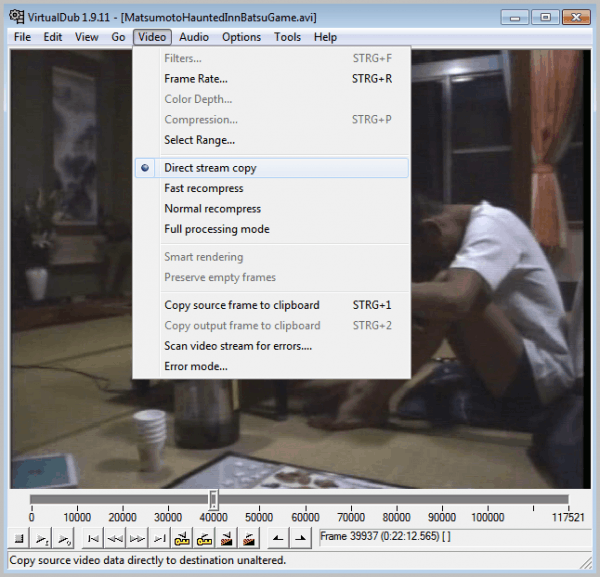
Load the video into VirtualDub after installation. You do that with a click on File and the selection of Open Video File from the menu. If you get an error that a codec is missing you need to install an appropriate codec for the video format before you can correct the audio discrepancy. This is usually the case when you use a video player like VLC or MPlayer which come with their own binary codecs that cannot be used system-wide.
Make sure Direct Stream Copy is selected under Video and Audio in the menu bar. Now select Audio > Interleaving. You should see the following screen.
Locate the Delay audio track by setting and enter the time in milliseconds that is needed to synchronize the audio with the video. Enter a positive number to delay the audio track, or a negative number to start the audio track earlier.
I suggest you use a program like VLC to find out the exact time in milliseconds that that audio is out of sync. It usually takes to long to use VirtualDub to find that out.

Click OK afterwards to close the configuration screen again. Now select File > Save as Avi to save the video with corrected audio to the local system.
And that's it. You have correct out of sync audio of a video file which can now be burned to video DVD.
Advertisement















I think i have the same problem though mine seems worse cause i tried to use vlc to get the lips to synchronize with the voice but my audio stil continues to change after alitle while can anybody advice me? I used used kworld usb 2.0 to capture.
I will be grateful for any help.
A better way to get details on video files is with a free program called Media Info.
@Joie de Vivre – I have the same conundrum and it drives me up the wall! I think it’s because most DVD authoring software re-encodes the video file prior to burning on to disc, and the sync issue is generated during this process. Very frustrating!!
The idea of using VLC is that you manually adjust the sync by following these steps (found on MacRumours forum)
In VLC
1. Go to preferences
2. Select Audio from the list, actually I think it is selected by default
3. Click the advanced checkbox in the lower lefthand corner
4. Enter the miliseconds you want to “desync” the audio in the box to your right – it’s entitled Audio desynchronization compensation – if you want the sound to come before the picture is it originally put a minus in front of the number…
5. Press save
When you sync the video to your liking, close VLC and then enter the time value in milliseconds into the VirtualDub Interleave options following the steps from the above the article.
Many thanks to the authors (MacRumours and Ghack), very helpful.
When I ran a movie on VLC player and checked the synchronization, everything was at zero, indicating to me that everything was in sync. Yet, when I burned the movie to DVD, I had a sync problem. What am I missing?
I don’t know the exact millisreconds that the audio would be out of sync with the video on my video files. And that would vary from file to file, in any case.
Is there a simpler method and/or software program (preferably free) by which us non-computer experts may fix this problem, to easily burn DVDs?
Thank you.
I don’t know the exact millisreconds that the audio would be out of sync with the video on my video files. And that would vary from file to file, in any case.
Is there a simpler method and/or software program (preferably free) by which us non-computer experts may fix this problem, to easily burn DVDs?
Thank you.
I discovered years ago that to avoid the dreaded lip sync I need to plonk the downloaded movie onto Windows movie maker and make a copy. It took awhile but once done and filed, I loaded it onto my DVD maker (SO THINK)LOADED BLANK DVD AND CLICKED BURN. On playing there was no problem with lip sync.
Very useful! I hate out of sync sound on my videos!