
Windows 7 SP1, All You Need To Know, And Do

The first service pack for Microsoft's operating system Windows 7, known as Windows 7 SP1 or Windows 7 Service Pack 1, is just around the corner for all users of the operating system. Microsoft shipped the service pack first to its OEM partners before making it available to subscribers of its MSDN or Technet service and business customers with Volume License agreements.
The service pack will be released on February 22 to the public. Microsoft will make it available via Windows Update and the Microsoft Download Center. Microsoft employee Brandon LeBlanc recommends that single PC or home PC users should be "Windows Update instead of downloading the standalone installer (or Network Installation Package) from the Microsoft Download Center" because of the better "installation experience". Check the disk space requirements chapter to find out why it is indeed better to use Windows Update to install the service pack.
Users who work with multiple computers may consider downloading the service pack update from Microsoft Download for distribution purposes.
Things that you should do before installing the operating system update:
- Scan the computer for malware and viruses. Make sure your antivirus software is up to date before doing so.
- Update device drivers if available to make sure the devices are compatible with the service pack
- Backup your important data and files prior to updating to service pack 1.
- Connect a mobile computer, laptop, netbook or notebook to a power outlet before you start the installation of the service pack.
- Make sure you have enough free disk space available for the service pack (see requirements for additional information).
- Microsoft recommends to disable antivirus software during installation as it can interfere with the installation.
- Possible file corruptions can be checked with the sfc /scannow command on an elevated command prompt. Users need to have the Windows installation files or DVD at hand in case corrupted files need to be replaced.
Windows 7 Service Pack 1 System Requirements
If Windows 7 is running on the computer then it is very likely that the service pack 1 will install and run on it as well without problems. The only issue that could arise is that you are running out of disk space.
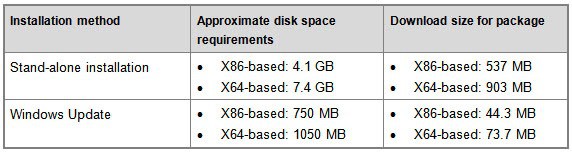
Service Pack 1 has disk space requirements that differ highly depending on the installation method.
Windows users who update the operating system via Windows Update need an additional 750 Megabytes for 32-bit systems and 1050 Megabytes for 64-bit systems. A stand alone installation, for instance by downloading the service pack via Microsoft's Download Center, requires 4.1 Gigabytes of date for 32-bit systems and a whooping 7.4 Gigabytes for a 64-bit system.
Language Packs
The best sequence is to install the service pack first, and then the available language pack updates.
How To Block the Installation of Windows 7 SP1
Microsoft has released the Windows 7 Service Pack 1 Blocker Tool which can be used for that purpose. The toolkit blocks the deployment for a period of 12 months after release of the service pack.
The question: Why would someone want to block the installation of a Microsoft service pack and why did Microsoft create the tool to let them block the installation? The purpose of the Windows Service Pack Blocker Tool Kit is to temporarily prevent the installation - but not the download - of the Windows 7 Service Pack on machines running the operating system.
The Service Pack Blocker Tool Kit was designed for companies and organizations that test new software thoroughly before applying it to all machines of their network. The damages that a new Service Pack - or any new software - could cause are immense and those organizations want to test it in a safe environment before patching all computers.
The Service Pack Blocker was not designed with end users in mind but it can be used by downloaded and used by anyone. I would not suggest to use it though in a home environment because those service packs contain important security updates that should be installed on any computers connecting to the Internet.
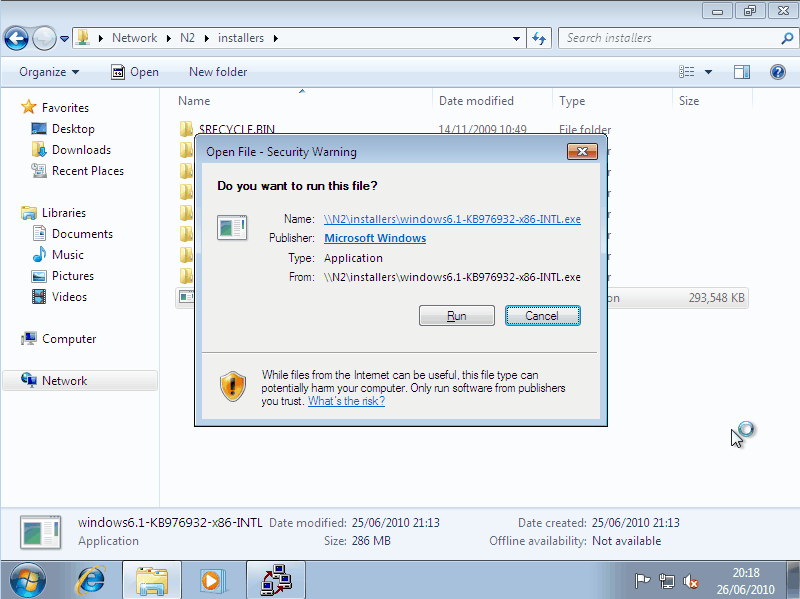
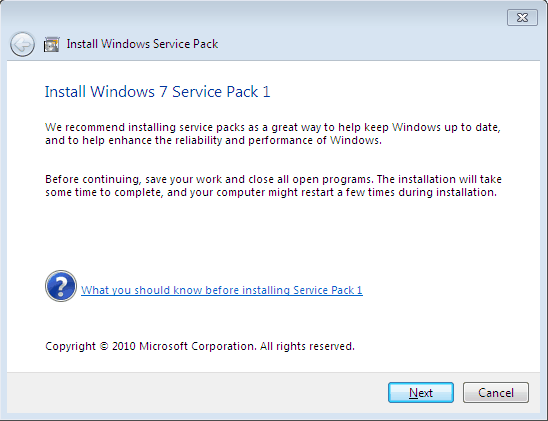
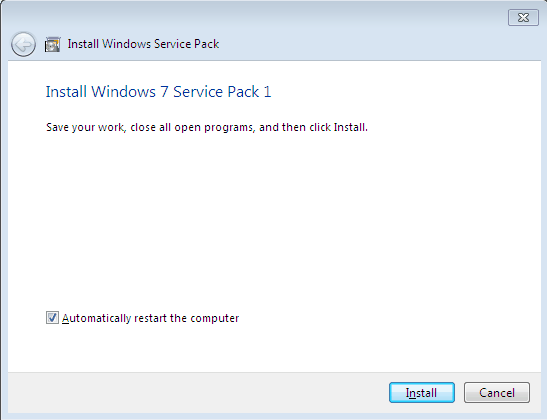
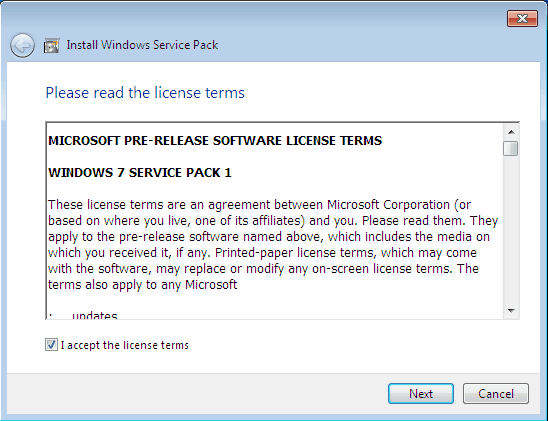
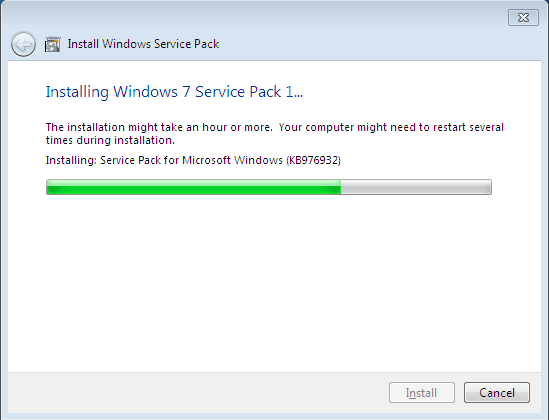
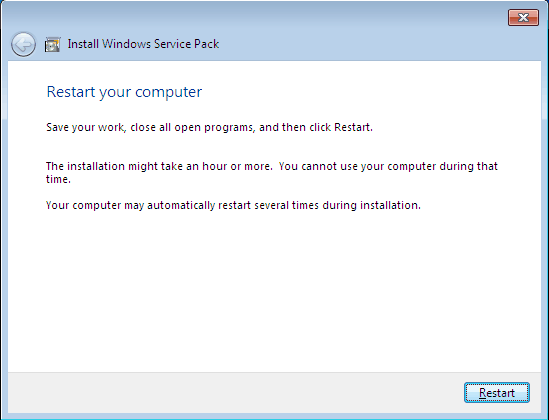
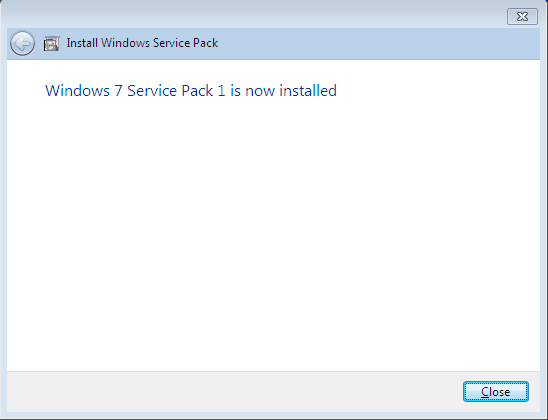
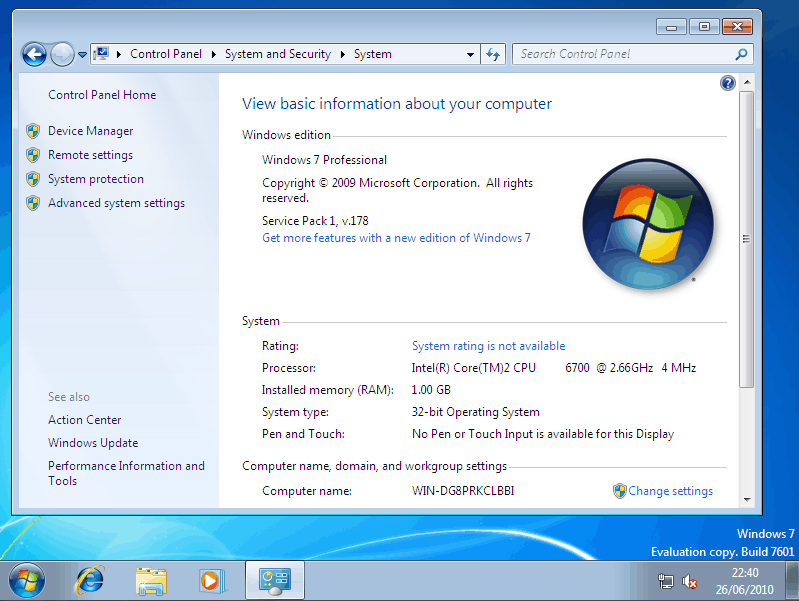
Windows 7 SP1 screenshots
Documentation, Release Notes, Resources
- Windows 7 SP1 Resource page by Microsoft
- Windows 7 Service Pack 1 Standalone download
- Windows 7 SP1 direct downloads
- Notable changes in Windows 7 Service Pack 1
- How to uninstall Windows 7 SP1
- How to order the Service Pack from Microsoft
Advertisement














For checking system file corruption the command should be ‘sfc /scannow’.
Thanks for the correction.