
Unzip Software That I Use

Having at least one unzip software at your disposal is a must, considering that many files that you download from the Internet or receive from colleagues are compressed to save up bandwidth during file transfers. Another reason why files are compressed is that you can add multiple files to a single archive which, in turn, improves manageability.
Some operating systems come with basic support for unzipping files. Windows 7 for instance can unzip zip files without third party tools. Then again, most users will encounter other compression formats such as 7z or rar eventually which means that they do not a third party software to unpack those files on their computer system.
I'd like to share the two programs that I use for the purpose. Wait, two programs? Yes, I'm using two programs to unzip files on my PC.
7-zip
7-zip is a classic unzip software that supports a wide variety of formats. It can pack and unpack formats such as zip, gzip, tar or 7z, and unpack only compression formats such as rar, iso, msi, cab or dmg.
The program integrates into Windows Explorer, so that it becomes possible to quickly unpack compressed files with a right-click on the file. It furthermore comes with a graphical user interface that can be used as well to pack or unpack files in the operating system.
I use 7-Zip to compress files and to unpack single archives on my computer. It's extensive support of compression formats makes it ideal for those two tasks.
Update: I switched to the excellent Bandizip in recent years, as it supports the very same things that 7-Zip supports, and then some.
Extract Now
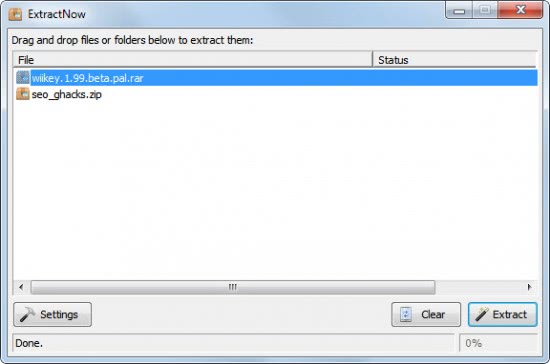
Have you ever downloaded or transferred many compressed files at once? I did, and that's where I realized that 7-Zip was not the best program for those situations. Say you have a directory full of compressed files, some split into multiple files.
The best tool for this situation is Extract Now which integrates into Windows Explorer as well. Simply right-click the folder containing the compressed files and select Search for archives from the context menu.
Extract Now will locate all archives in the folder. The unzip software can be configured to extract all archives automatically, or after user input only. The program can also be configured to monitor directories to unpack new archives that are stored in the directories automatically.
In short; I use 7-zip to pack and unpack individual files, and Extract Now to mass extract compressed files in a directory.
Which unzip software do you use? Let me know in the comments.




















I use 7-zip as its free ware. Only issue I found is at times some compressed file don’t opened and show error when accessed through WinZip. otherwise I love it. Specially its contextual menu.
Noone mentioned HaoZip. This software handles pretty much any compressed file. It’s free and you can even apply a skin to make it look just like WinRar. WinRar users will find it very familiar.
Visit their site here: http://www.haozip.com (it’s in chinese)
or download the setup from here: http://download.haozip.com/haozip_v2.1.5278.multi.exe
IZarc and UniExtrcact for installers (as most apps run portable) is my choice.
This is something I’ve never understood. Truly. All I’ve ever done is double-click. Well, maybe back in Windows 95 I used an UNzipper. Then I acquired a Win7 laptop and had to install 7zip. ???
I use 7zip predominantly. Re zip generally, you may be interested in Zipinstaller by Nirsoft: “The ZipInstaller utility installs and uninstalls applications and utilities that do not provide an internal installation program. It automatically extracts all files from the Zip file, copies them to the destination folder you select, creates shortcuts in the start menu and in your desktop, and adds an uninstall module to allow you to automatically remove the software in the future.” I find it very useful.
Hi,
I used “Ultimate zip” awhile.
Now, I use 7zip and I am very satisfied.
If I have several compressed files (Never more than a dozen), I select them all together and I ask 7zip extraction by right-clicking.
7-ZiP FTW :) Have used it for the last 4~5 years, does everything that I need. I have tried tugzip, uniextract, winrar, peazip, ….
7-zip or file manager plugins (zip and 7-zip again).
I use http://legroom.net/software/uniextract & http://www.izarc.org/download.html
Tugzip
7-Zip
7-Zip is excellent. You can uncompress multiple files very easily: Just select them, right-click and choose 7-Zip/Extract here (or Extract Files to another folder).
That’s true, but it is not that easy anymore if you have a large directory with several multi-zip volumes since you have to select the first file of all compresses archives that you want to unzip. That’s the main use for Extract Now on my system.
I also use the built-in zip functionality in Total Commander. It also has a plugin that gives compatibility with 7-zip. Otherwise I on occasion use WinRAR when Total Commander doesn’t work – hasn’t been necessary in a couple of years, though…
I also use the .zip functionality of TotalCommander.
Occasionally I use PeaZip http://www.peazip.org/
fro playing around with compression methods etc.
I’m using WinRar since past 5yrs, it’s simply the best.
I’ve always used (as far as I remember) IZArc Archiver, handles many archive formats, functional. But I hadle most archives with Total Commander’s built-in module.
7-zip is good enough for me. Or I can live with Windows’ built-in zip folder capability. My needs are simpler than yours. :p
Uni Extract
http://legroom.net/software/uniextract
Unpacks/unwraps just about everything, archives, installers, cabs, .debs, yums, rpms, bins…everything.