
Two Windows 7 Speed Up Tips

When you perform an operation over and over again, you may be inclined eventually to find a way to optimize that process to save time and speed up the work flow.
The following two tips have helped me personally speed up two operations in Windows 7 by cutting down on the steps required to execute them.
The first tip actually works in other versions of the Windows operating system as well, the second only in Windows 7 and newer versions of Windows.
How to end the explorer.exe process effectively
I regularly have to kill the Windows Explorer process, for instance after installing a new Windows theme or software that interacts with the default shell in the Windows operating system.
The fastest option in past years was to press CTRL-SHIFT-ESC to open the Windows Task Manager, locate the explorer.exe process in the process listing, right-click on it and select end process. Then on to File > Run in the task manager to launch the explorer process again.
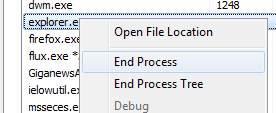
This takes some time and is not the best option. I have created a small batch file for killing and restarting explorer.exe with a click of the button.
(Download Removed)
The batch file automatically kills the explorer.exe process in Windows, and restarts a new instance of the shell afterwards. Simply download and extract the batch file and double-click it to execute. Cautious users may want to look at the code first, which can be done by loading the batch file into a text editor. You should see the following commands:
@echo off

taskkill /f /IM explorer.exe

start "" "explorer.exe"
Line two of the batch file kills the explorer.exe process, line three will restart it. On to the second tip.
Access the properties menu of items in the Windows 7 Taskbar faster
The new Windows 7 taskbar has changed the way users interact with taskbar items. Windows 7 users who want to access an items properties, for instance to add a command line parameter to its startup, need to right-click on the item, and then again on the actual program link to open the properties menu. Two clicks with the mouse and some fiddling to hit the right entry? Not very comfortable.
The following tip only works for programs that are currently not active. This limits the use a bit. Instead of right-clicking twice and left-clicking once, users can now hold down the SHIFT key on the first right-click to open the context menu with a Properties link right away.

Remember, just hold down the SHIFT key before right-clicking on the taskbar item in the Windows 7 operating system.
Have optimizations of your own to share? Let us know about them in the comments.
Advertisement















Wow i use the exact same thing, made a small script gave it a keyword on my launcher so that I can load it up quickly.
Also, theres a program caled 7 Taskbar Tweaker, small utility that adds functionality to the Win7 taskbar, could not live without this program. One of its features is to automatically show the classic context menu upon right click of an icon on the taskbar, this way you don’t have to hold shift.
7 Taskbar Tweaker at “http://rammichael.com/7-taskbar-tweaker”
I use this command to kill “explorer” instances:
taskkill /F /FI “IMAGENAME eq explore*”
Thanks for your tips!
Another way to close explorer quickly (and much more gracefully) is to open the start menu and control + shift + right-click on any blank area.
If I want to quickly restart a single-window application that is pinned to the taskbar, I mouse-over its icon, then its window preview, middle-click (to close), then click on pinned icon.
Alan, I know of the start menu End Explorer option. I think it is flawed by design, as there is no option to start it from there then. Which means you have to go to the task manager (since Windows-R is not working) and start the explorer process again from there. If Microsoft only would have added a restart explorer there.
I however did not know about the second tip. Closing windows with a middle click, that’s great.