
Collaborate with Abiword

Collaboration is a key component to working in a business or on a team. There are so many ways to collaborate on a project: Google Docs, Online Whiteboards, Chatting, CMS tools, and many more. One tool, though, has a bit of a different approach. This tool is built into the open source document writer Abiword. We've covered Abiword a bit here on Ghacks (for a sample of this content check out my article "Abiword: A lean word processing machine"), but we have yet to touch on the collaboration feature built in. Â In this article I will show you how to take advantage of the Abiword built in collaboration tool. Â I will, of course, assume you have Abiword installed on your machine and have a basic understanding of how to use this open source word processor.
Before you begin
I am going to illustrate the collaboration process using the Abicollab collaboration service. This service is free, you only need to sign up, check your email, and then verify your account. You do not have to use Abiword to take advantage of Abicollab. But since Abiword has the feature built in, it only makes sense to take advantage of this collaboration server via Abiword. if you opt to do this with a different word processor you will have to manually upload and download the files. The ability to manually upload and download files is handy when your fellow collaborators are not using Abiword.
You will also notice, in your Abicollab account, you can add groups and friends. Take advantage of this because it will make the collaboration process even easier.
Once you have signed up for the service, you are ready to start collaborating. So let's see just how this is done.
Connecting Abiword to Abicollab
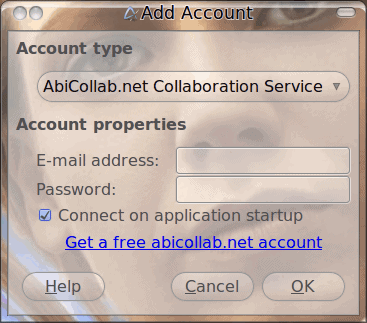
When you open up Abiword click on Collaborate > Accounts. When this new window opens you will want to click the Add button to open the Add Account window (see Figure 1). Â Remember that Abicollab account you created? This is where you add the credentials for it. Select the AbiCollab.net Collaboration Service from the dropdown list. Once you do that, enter your credentials, and finally select if you want to connect at startup.
After you have completed that you are ready to start collaborating.
Collaboration
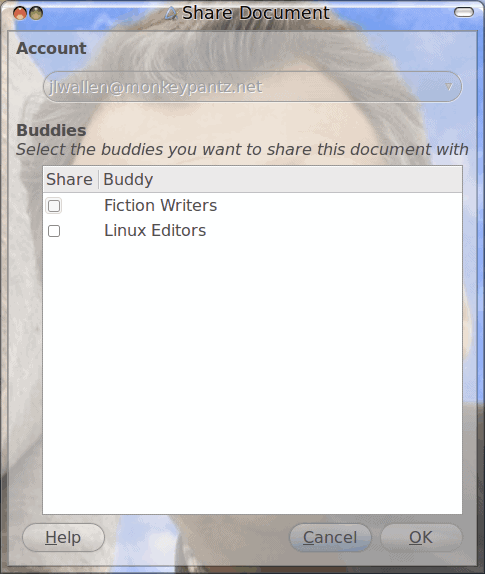
This is actually quite simple. If you have yet to upload a document then fire up Abiword and start writing. When you are finished click Collaborate > Share Document. In the new window you can select which buddies or groups you want to share the document with and then click OK (see Figure 2). This will upload your file to your AbiCollab account. Anyone you have selected to collaborate on this document will be able to collaborate on that document.
You can also open shared documents. To do this click Collaboration > Open Shared Document and, from the resulting window, select the document you want to open for editing. This will automatically download the shared document and open it with Abiword.
The only issue I have seen with this system is there is no way to determine if a file is already opened by a user. This could cause some serious issues when one person makes an edit prior to another making a different edit on a previously saved file. AbiCollab needs to come up with some form of locking mecahanism before this is of any real value to serious collaborative users.
Final thoughts
Although not perfect, Abiwords ability to collaborate makes it a very unique tool in the world of word processors. I like where this is going, and once AbiCollab works out some means to lock files I will use it in earnest.
Advertisement













How is this web service licensed? I know I care more about software and hardware freedom than many people, but I like software licensed under the GPL. I don’t like predicating my data or workflow on technology that I don’t have the opportunity to have ultimate control over. Abiword is licensed under the GPL, and I use and like it. This sounds like a cool service, but for somebody like me, a web service is a bitter pill to swallow if it’s not covered by the AGPL. For example, Google’s anti-AGPL stance is a big problem for me, which means I sit on the sidelines when it comes to this and a lot of other “popular” web services (although I do get some smug pleasure every once in a while, like evertime Facebook teaches the initiated a lesson in why they should be more discerning). Any indication of how this is licensed or what it means to the freeness of Abiword in one’s workflow?
Not sure whether we need this when Google docs is already there. However I’m going to give a try with Abiword.
I would never use this service. Their dialogue boxes are full of body parts. There is a nose in the middle of the first screenshot, and a forehead in the second one. No, thanks.
Dotan, the screenshots will from now on be posted without transparency.