
Copy partitions with gparted

I wanted to continue with the rescue theme, but since Partimage is limited in it's file system support, I thought I would go another route. That route? Gparted. Gparted is an amazingly flexible tool that serves as a graphical partition editor built for the GNOME desktop environment. But Gparted can do much more than just edit partitions. One nifty trick I discovered it can do is copy partitions from one drive to another. It's a bit time consuming but when you want a copy of that partition, sometimes you'll go the extra mile.
In this article I will walk you through the process of copying a partition from one drive to another with the help of Gparted.
First things first
Before you get too involved with this process there are a couple of things you will need to know. First and foremost the ONLY way you can copy and paste a partition is if that partition is not mounted. So if that partition is on a working system, and you need that partition mounted for the system to be working, you can not just install Gparted and have at it. Instead you have to use a live CD with Gparted included, such as SystemRescueCD. With this live CD you can boot up and then run Gparted on the drive in question without any problems.
You will also need to have an external drive attached with equal or more space than the source partition. And this space needs to have enough unused space on it to accommodate the partition to be copied.
How it's done
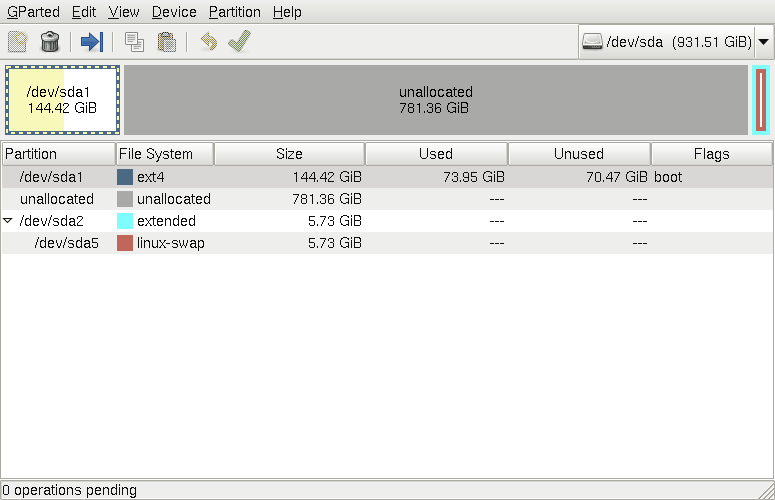
When you fire up your live cd you will need to open up a terminal window and issue the command gparted to use the tool. Normally Gparted need to be run with root privileges, but since you are using a live cd you won't need this. When you fire up Gparted you will see your first drive listed (see Figure 1). As you can see there is a 144.42 Gb partition to copy. From that drive select that partition that will serve as the source and click the Copy button. You can also right-click the selected partition and select Paste from that menu.
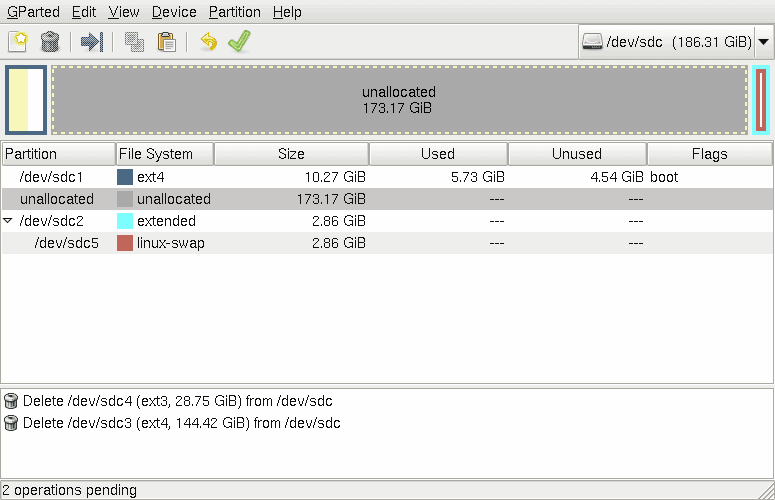
Now click the drive drop-down and select your second drive (this will be the external drive attached to the machine). With this drive selected you should see plenty of unallocated space (see Figure 2). If you do not, you will have to make room by resizing the existing partition. Select that unallocated space and then click the Paste button. You can also right-click the selected space and choose Paste from that menu.
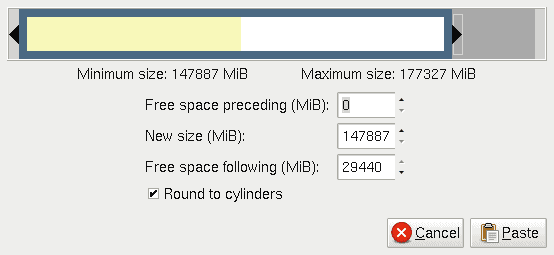
When you click the Paste button (or menu entry) a new window will open that wants you to define how much of the unallocated space to use (see Figure 3).
As you can see, in my example, there is plenty of unused space on the partition being copied. I could shrink that partition to make room for something else on that drive (should I need to). If this partition is going to be then copied to another machine, you really don't need to worry about resizing - so long as it will fit in the unallocated space.
Once you are done, click the Paste button and the partition will be pasted. Of course the action isn't finalized until you have clicked the Apply button. Once you have done that, there is no going back - your partitions will be copied. Make sure you leave yourself plenty of time as this can be a lot of data to copy.
Final thoughts
It's not the most elegant solution, but it works and works extremely well. Using Gparted to copy partitions from one drive to another is a great way to rescue a working system from a dying one. You might want to practice this on a non-critical machine before you do so on mission critical hardware. Just in case.
Advertisement













So if I have windows on that drive and I move it to an SSD it will boot alright?
A bit late but maybe someone else has same question. I don’t think it will boot because it’s just copying the partition and not the MBR or disk boot information. But the windows recovery disc might be able to fix/restore the MBR. So, when it doesn’t boot, try booting up with the windows recovery disc and hopefully it will find the windows partition and setup the MBR (or disk boot information).
Actually, If you want to make a copy of the windows system partition, you might be better off using the windows “create system image” tool. It will copy the windows system as well as the boot partition information and the hidden recovery partition (if one exists). Plus, it will compress the image so if you keep it as a backup it won’t be so large (perhaps you could store it on an external usb hard drive). After you make the image, you boot using the Microsoft System Repair Disc and use the repair disc to restore the system image. Make sure the new hard drive is equal to or larger then the your existing windows partition.
There are other non Microsoft programs that can also do system backup or cloning of hard drives. Some of these 3rd party programs might have more options then the MS “create system image” tool. Such 3rd party tools would be relevant if you had multiple partitions you wanted to copy; or, if you wanted more control then the MS “create system image” tool allows. But MS create system image is simple to use and comes preinstalled with Windows 7 & above.