
How To Disable Geolocation In Google Chrome

The Google Chrome browser, much like Firefox, has a geolocation feature. Geolocation in this context means that websites and services can utilize the user's location to provide personalized contents. A basic example would be a website that displays information based on the visitor's location in the world. A weather report website could benefit from this for instance.
But geolocationdoes raise the alarm bells of some users who prefer not to be traceable at all. Geolocation is by default disabled in Firefox.
Google Chrome handles the matter slightly different. Geolocation is enabled but will only be accessible by a website or service is the user accepts it first.
A confirmation message like the one above will be displayed whenever the user opens a website that makes use of the location feature in Google Chrome.
Users who never make use of the geolocation feature can disable it easily in the browser's options. Please note that geolocation is a feature of Google Chrome 5 and not available in previous versions of the web browser.
Click on the tools icon and then on Options in Google Chrome. Switch to the Under the Bonnet tab and click the Content settings button.
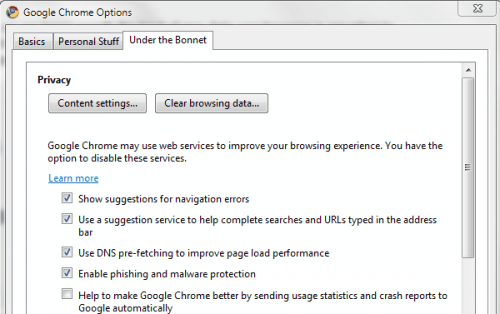
Switch to the Location tab in the new Content Settings window.

Three possible states for the geolocation feature are offed:
- Allow all sites to track my physical location
- Ask me when a site tries to track my physical location (recommended)
- Do not allow any site tot rack my physical location
The second option is the default option. Just switch to the do not allow any site to track my physical location option to block all geolocation requests automatically.
Firefox users can take a look at the guide to disable location aware browsing in Firefox to check and disable geolocation in their web browser if necessary.
You can test the browser's geolocation feature on this website.
Advertisement













Other sites are not a problem Google is.
the option is there to select do allow any user to track my location but it is cosmetic sh… it does not WORK
“Geolocation is by default disabled in Firefox.”
Funny in a curious sort of way. I had to change it to DO NOT FCKNG TRACK ME.
Geolocation would be great if only it worked. It says I’m in St. Paul Minnesota. But I really live in East Moline Illinois. Nice try Google but no cigar for you.
I have tried to disable my cookies and something else, but every time I try to do this, it just reloads the page and doesn’t get me elsewhere. Any advice?
Huh, the site provided says the feature is not supported in Ff 2.2, yet sites ID my city all the time.Is there something else going on here, like active cookies??
Another option to identify a user is to do a reverse lookup on the IP address.
I do not see this option in Iron v.4.0.280 in “Under the Hood.” Am I safe in assuming that geolocation is turned off by default??
BTW-geolocation appears to be “on” in Firefox v2.2, & no changes are possible in about:config, at least by the method I tried.
Geolocation is not available in Iron 4 or Google Chrome 4 or Chromium 4.