
Setting Up Email Accounts In Thunderbird

Mozilla Thunderbird 3 is currently available as a release candidate. This suggests that the final version of the desktop email client will be released rather sooner than later.
One of the biggest changes between Thunderbird 2 and Thunderbird 3 is the way new email accounts are created.
Note: Newer versions have been released, and the method outlined below applies to all of the new Thunderbird releases.
Email users needed to setup the email account manually in Thunderbird 2 which has changed to a semi-automated process in newer versions of Thunderbird.
Setting Up Email Accounts In Thunderbird
To get started, select File > New > Existing Mail Account from the menu at the top. Note that you may also create new email accounts in new versions of Thunderbird directly from within the interface. Select Get a new Mail Account instead if you want to create a new one.
The best case for setting up an email account in Thunderbird is that you only need to fill out three different parameters of which none are related to mail server host names or ports.
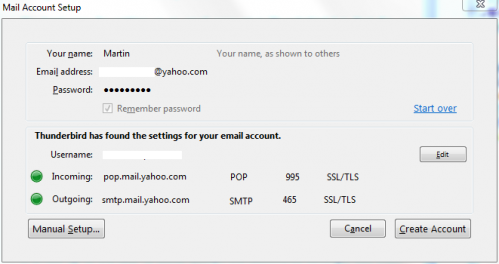
As you can see it is only necessary to fill out a name, email address and password in the beginning. Name can be anything, while the email address and the password need to be correct of course.
Thunderbird will now automatically try and discover the incoming and outgoing mail servers. This includes ports and security settings.It supports quite the range of services including Gmail for example so that you don't need to enter technical information to add the account to the mail client.
The information is displayed on the same screen and a green light indicates that the discovery was successful.

It is now up to you to either accept the discovered settings, edit them right away or opt for a manual setup which will lead to the same email setup options that Thunderbird 2 offered to its users.
The information that you need, incoming and outgoing server, ports and security, is usually provided by the mail service. If you cannot locate the information there, contact support as they will provide you with the data.
Edit allows you to edit parameters like the username, incoming server, incoming mail protocol, port and security settings on the same screen. These can be directly verified by Mozilla Thunderbird so that you know if they are okay or not.
The mail server discovery works very well for popular email providers such as Gmail or Yahoo Mail. It can happen that Thunderbird does not find settings. This happens often if mail accounts are hosted on private servers or by lesser known email providers.
The only option that is then available is to select manual setup to configure the email account so that it can be used in the email client.
We have published information on setting up Pop3 or IMAP accounts for popular email providers:
- How to access Yahoo Mail using Pop3 or Imap
- Gmail POP3 Configuration
- Hotmail and Outlook POP3 and SMTP Configuration
Closing Words
Thunderbird makes it very easy to setup email accounts especially if they are hosted by popular email providers. Users do not have to hunt down the mail server settings on the email providers website anymore since they are automatically discovered by Thunderbird in best case.













Thank you.
I am planning a switch from outlook to thunderbird, I have tried via the authomatic system but wouldnt work, the manual keys as well well are not visible. Is there anyone who could help me with any suggestions on a better EMAIL system or how to go ahead with TH?
Which version of Outlook are you using?
I have an email that uses a pop for incoming and stmp for outgoing, On thunderbird it automatically marks my incoming as an imap. Is there any way to change this?
It’s ridiculous that the user can’t change the protocol from IMAP to POP, once the account is created. You would need to delete the account and start all over again.
While Thunderbird is scanning the server to try and automatically configure your account, you can click the “stop” link on the My Account Setup dialog while it is still showing.
Thankfully, in my case, Thunderbird didn’t find the right configuration for the outgoing SMTP server, so the dialog didn’t disappear and I could easily set the settings manually.
I seem to remember now why I never switched from Outlook to Thunderbird when I tested it about two or three years ago. It is all illogical to me. It was really a mess for me to search the settings where to put the port numbers for POP and SMTP. It turns out that SMTP servers have their own section in the settings dialog. They are not sorted under associated e-mail account like with Outlook.
This guide helped! Thank you!
The account setup is just retarded – TB has gone from hero to zero – how can they make it so bad? Won’t even let me put in the USERNAME that I want to use! – keeps adding the domain name, which is not correct setup for an internal Exchange account. POS.
Here is all you need to now to configure free Yahoo Imap with Thunderbird 3.05 or 3.1
http://www.aliasbailbonds.com/KeeForm/category/thunderbird
I too couldn’t get a POP3 account configured. As soon as started accessing the email server, it decided I wanted to use IMAP. I tried hitting the manual settings button, but it always got there first. Eventually, I switched my router off so it couldn’t access the server. I was then able to set it up as a POP3 account. But some of the rest of the configuration did not work.
I was planning to use TB3 instead of Windows Live Mail, which I dislike. I’ve changed my mind. If Mozilla can allow such an awful installation process, how can I be sure the rest of TB3 is not as bad? I can’t afford to take the risk and will stick with WLM.
Had similar problem with Thunderbird 3. Wouldn’t allow me to use my server settings – tried to change it to no avail. Automatically sets you up with imap even when you don’t want it, and leaves no option to change this.
I put in the correct settings manually. Email wouldn’t go through – couldn’t connect to the server. Manual and automatic settings didn’t work. I don’t know what it was auto detecting, but weren’t my settings.
Reinstalled Thunderbird (older version) and no problem at all with the settings. Email works as normal.
I WANTED to put my email settings in manually, but it was not obvious how to do it. “MANUAL” was greyed out, and there it was thrashing about trying to find ATT when it was really the unholy alliance of ATT/Yahoo. Should have the manual mode available as an option right up front.
Thunderbird 3 really does have it’s problems and is a lot uglier. I’ve just spent 2 hours trying to get 4 email addresses into the mail accounts. Each time Thunderbird says it can’t detect the servers settings. I try to set it up manually and Thunderbird thinks it knows my server type better than I do. Strange really as Balsa, Evolution and Opera Mail have had no trouble. Unfortunately Evoltuion is slow and crashes a lot, Balsa doesn’t support some options I need and I was always a T2 user.
On top of that, why Thunderbird thinks it is more important to bold type my email address names in the left pane than my Inbox when there is mail in it I will never know…. come on Mozilla, try sticking to some visual standards at least.
Enough is enough. Stop whining about TB not correctly detecting your pop-imap-servers! Just f* put them manually in, while you are there. It costs less trouble and time to do so, instead of watching it seeking, like a retard.
If yahoo fails or sucks, well, first talk to yahoo to allow it. Because now its just a hack to get it working. Its not suppose to work.
peace out.
Manual Setup and Edit buttons are disabled. No way to set up my email accounts. NO F**king way!!!
Honestly, I’m not so sure Thunderbird 3 is much of an improvement. To set up my yahoo mail, I had to manually configure the settings. At first I thought it didn’t work because I didn’t check the yahoo settings for pop account access on yahoo, and after allowing pop access, Thunderbird still couldn’t automatically set it up.
**I don’t know if I would have ran into the same problems for gmail or gmx, as those settings were imported when I upgraded.
I’m going to be abandoning TB after 10 year because of this BS. It is assuming that I want IMAP and I;m trying to setup POP. I know all of the settings but I assumes that its IMAP and I can find no way of changing.
Trying to be too f**king smart. Like M$ and all the rest of them.
Just leave it alone and assume that people can actually do stuff them selves.
Wake up
Correct, Thunderbird 3 is complete garbage. The automated wizard consistently discovers the wrong servers and automatically creates imap accounts when pop is desired. The global inbox option is nowhere to be found, and I don’t want 10 separate inboxes. Stupid, stupid, stupid.
Jason, you have to configure yahoo that it allow pop. However yahoo doesn’t allow it. Only if you can trick yahoo into thinking that you are using the asian service! Or you could upgrade for a yahoo plus account.
I had the same problem. But I managed to do so with Thunderbird 3 of course.
Follow this: http://picobit.wordpress.com/2009/04/10/yahoo-mail-free-pop-access/
Thunderbird is complete garbage! “Thunderbird 3 makes it very easy to setup email accounts especially if they are hosted by a popular email provider.” Um, last time I checked, Yahoo was a very popular email provider. And yet it refuses to recognize my yahoo account. Even if I enter the info manually, it just acts retarded. There are 50 different people online giving 50 different instructions for setting up Thunderbird for Yahoo. NONE WORK. I even installed the add-ons that were supposed to help with yahoo configurations. I also downloaded YPOPS! Thunderbird is a complete waste of time and I really wish people would stop posting things like this stating how “easy” it is. It’s a piece of crap.
It doesn’t work, It says the password/username isn’t correct I only have one pass to test. I checked with username@yahoo.com or without @yahoo.com, always the same error.
Ugh, thunderbird is useless with when detecting the server names for gmail.
It says the servers are ‘pop.googlemail.com’ when it’s supposed to be ‘pop.gmail.com’ which wastes more time than what it’s trying to save :@
T3 will not connect to my yahoo mail accounts, I have three, it won’t connect to any, zero.
Excuse me, this wizard creates a new node for each new account. Instead, I would like to receive all incoming messages inside a “global inbox” in Local folders as I could do before. Did they remove this option? Also, I don’t want Thunderbird to discover anything, I just want to input my data.
Just a technical note: there is a typo in the text. “Thunderbird will _not_ automatically try and discover the incoming and outgoing mail server including ports and security settings” was probably meant to be “Thunderbird will _now_ automatically try and discover the incoming and outgoing mail server including ports and security settings”. Martin, feel free to delete my comment after you see it and correct the typo :).
You are right, corrected and thanks for the correction ;)
If Thunderbird is aiming for mass acceptance, they need to replicate the way most smartphone OSes do things and just prompt for a name, username, and password. If the user needs to fine tune settings, there should be a button for “advanced settings”. Average users don’t want to bother with the intracies of server types and addresses. i can’t blame them.