
Three Methods To Force Add-On Compatibility In Firefox

You might have read in our announcement post about the latest Firefox 3.6 beta that the Mozilla developer's have changed the add-on compatibility parameter in the Firefox web browser.
This article therefore describes three different ways to force add-on compatibility in the upcoming Firefox 3.6 browser.
It needs to be noted that forcing compatibility might not always yield the desired result. It will work fine if the developer has not yet updated the add-on to be compatible with the latest version of Firefox. It will however not work - or cause errors - if the add-on is using functions that have changed in the latest version of Firefox.
Note: The article describes methods that worked in classic Firefox. These methods don't work anymore in new versions of the web browser. Firefox users may run the Add-on Compatibility Reporter however to inform Mozilla about add-ons that are not working properly anymore.
Method 1: Nightly Tester Tools
The Nightly Tester Tools have been designed for Firefox developer's who want to test (their) add-ons in new versions of the web browser.
This Firefox add-on forces compatibility so that the add-on can be installed even if the compatibility information say otherwise. This is a very straightforward and easy way. Firefox users with this add-on usually do need to download the add-on that is not compatible with their version of Firefox from the add-on's page that displays all versions for download (The last version download usually becomes inactive if the Firefox version of the user is not compatible).
The Nightly Tester Tools will display the following window if the add-on has been found to not be compatibly with the version of Firefox:

It is also possible to force compatibility for all add-ons that are already installed in the add-on manager in Firefox.

Nightly Tester Tools is available at the Mozilla Firefox website.
Method 2: Editing the Firefox Configuration
This is the method that has been changed by the developers of the browser. It has an impact only on Firefox 3.6 beta 3 and newer which means that most users will not have experienced the changes yet.
Before that version it was possible to create a new Boolean parameter extensions.checkCompatibility in the Firefox configuration and set it to false to be able to install all Firefox add-ons regardless of their compatibility.
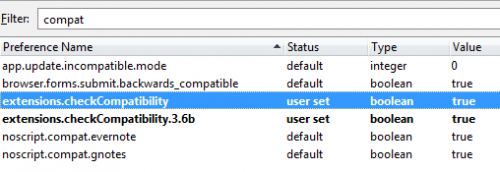
This was changed by the Firefox developers so that it is now necessary to add a version to the parameter. What this means is that it is from Firefox 3.6 beta 3 on only possible to override compatibility for a specific version of Firefox. The times of changing a parameter once are therefore a thing of the past.
The Firefox user needs to append the version of the browser to the parameter, for Firefox 3.6 beta 3 it would be extensions.checkCompatibility.3.6b, for the final version of Firefox 3.6 extensions.checkCompatibility.3.6 and so on.
The advantage of this method is that it does not require the user to install an add-on to force compatibility. It has become more complicated with this change though. It does not on the other hand provide the same level of customization that the Nightly Tester Tools offer (the parameter enables all add-ons automatically and the user would have to disable or uninstall the add-on to stop using it).
Method 3: Editing the Firefox add-on file directly
Now this method was popular when Firefox 1 became more popular. Today it's more of a nice to know method than a practical one as the other two methods should be all there is needed to make an add-on compatible with the Internet browser.
Users need to download the add-on to their computer system first. The add-on is an xpi file which then needs to be extracted with a program like 7-zip. This will extract all the files of the add-on including a file called install.rdf in the root directory.
Open that file in a text editor and locate the the following two lines:
3.0b5
3.7a1pre
These two parameters define the compatibility limits of the add-on. Change the versions (usually the maxVersion is all that needs to be changed) so that the Firefox version is included. After that create a new zip archive with the updated contents and rename the extension from zip to xpi. Install the edited add-on in the web browser by dragging and dropping it into its interface.
















The screenshot shows BOTH boolean parameters existing in the about:config while the text reads “user needs to append the version of the browser to THE parameter.” Does method 2 require the appended AND unappended booleans or just the appended? Thanks.
Haakon, only the second parameter is necessary now, you just need to replace 3.6 with your version of Firefox.
All right I have tried to follow your tips to update to 4.0 beta 9 but nothing is working and I cannot undo my changes :(
I installed Firefox 4.0 beta9
I have installed the Nigltly Tester but in the incompatible extensions I only have the uninstall button and even the right click menu offers no option.
I cannot even access the NTT options since the button is not present or anyway i cannot find it.
I have tried editing the config in which I only had
extensions.checkCompatibility.3.6b (weird)
So I created:
extensions.checkCompatibility
extensions.checkCompatibility.4.0.9b (is this the correct sintax btw?).
I set both to true.
After restarting Ffox extensions.checkCompatibility.3.6b disappeared but I still cannot make incompatible extensions work and cannot even remove my entries anymore.
All I have achieved is that Firefox is going crazy eating memory (1400 MB!)
Any help please?
Thanks
there are another Firefox Add-on that can do the same thing, plus other function as well. Try MR Tech Tollkit at https://addons.mozilla.org/firefox/421/