
Create Virtual Images Of Physical Drives With Disk2vhd

Tech savvy Windows users love Sysinternals applications. That's a given fact and you barely stumble upon someone who has not at least one or two of the software programs created by Sysinternals in their bag of tools that they carry always with them. Disk2vhd is the latest software program released by Microsoft's Sysinternals division. It is a portable lightweight software program that can create a virtual disk image in vhd format from a physical drive that is connected to a computer system. The vhd images that are created with the program can then be used in Microsoft Virtual PC or Microsoft Hyper-V virtual machines.
The process to run physical disks into vhd images is as simple as possible. The program will display the available physical disks of the computer system upon startup. All that it takes to create a vhd image is to select a path and name for the image (or keep the default suggestion) and select the physical drives that the virtual image should be created of (or keep the default selection).
Disk2vhd will then create the virtual image which can then be used in Microsoft Virtual PC or Microsoft Hyper-V. One of the benefits of using the Sysinternals program is that it can create virtual images of physical drives in Windows
It will create one VHD for each disk on which selected volumes reside. It preserves the partitioning information of the disk, but only copies the data contents for volumes on the disk that are selected. This enables you to capture just system volumes and exclude data volumes, for example.
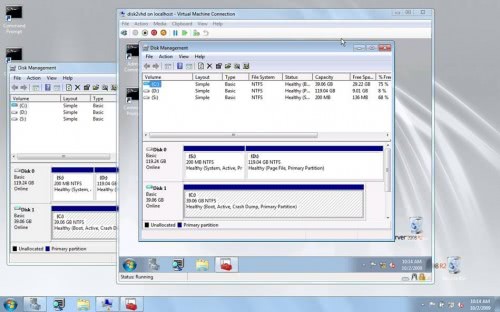
Usage instructions:
To use VHDs produced by Disk2vhd, create a VM with the desired characteristics and add the VHDs to the VM’s configuration as IDE disks. On first boot, a VM booting a captured copy of Windows will detect the VM’s hardware and automatically install drivers, if present in the image. If the required drivers are not present, install them via the Virtual PC or Hyper-V integration components. You can also attach to VHDs using the Windows 7 or Windows Server 2008 R2 Disk Management or Diskpart utilities.
Disk2vhd is compatible with all Microsoft operating systems since Windows XP SP2 including Windows Vista, Windows 7 and their 64-bit editions. A download is available at the Sysinternals website. It is furthermore possible to run the tool directly from live.sysinternals.com. (via Lee at Download Squad)
Advertisement


















Hi
I have had too many problems with disk2vhd. Instead I used virtualbox with vm_converter. Very good results. Here is the instruction page for that :
http://www.pjsquared.com/blog/?p=169
I’ve been using Macrium Reflect recently and I’m very impressed since you can then mount the image as a new drive in Windows. There’s a free edition here: http://www.macrium.com/reflectfree.asp
“When the Virtual Machine VHD file is created, you can run it in any desktop virtualization program including the free Windows Virtual PC, Virtual Box, or VMware Player”
According to D. Inspiration it can run in virtualbox :D
This looks VERY interesting. I’ll see if it’s possible to use it also in virtualbox.