
Quickly capture screens and share them on OS X with Skitch

Macs don't have a PrintScreen button, and if we want to take a screen-capture, the default program we use is Grab. Grab is great in a few ways; you can choose to use a timer before a screen-capture is taken and it can be used to ensure only a certain area of the screen is captured. Unfortunately, after a screen capture has been taken, Grab lacks any features to edit it (eg cropping) and only lets you save it as a TIFF.
It can be somewhat cumbersome to capture a screenshot in Grab, and then have to move it into a program like Photoshop to manipulate it. And if you want to share the image, you have to change its format.
An alternative piece of software is Skitch, screen-capturing software for OS X (Update: now also available for Windows, as well as mobile Android and iOS devices). Skitch provides screen-capturing facilities similar to Grub, but integrates some editing tools and also provides tools to share the images.
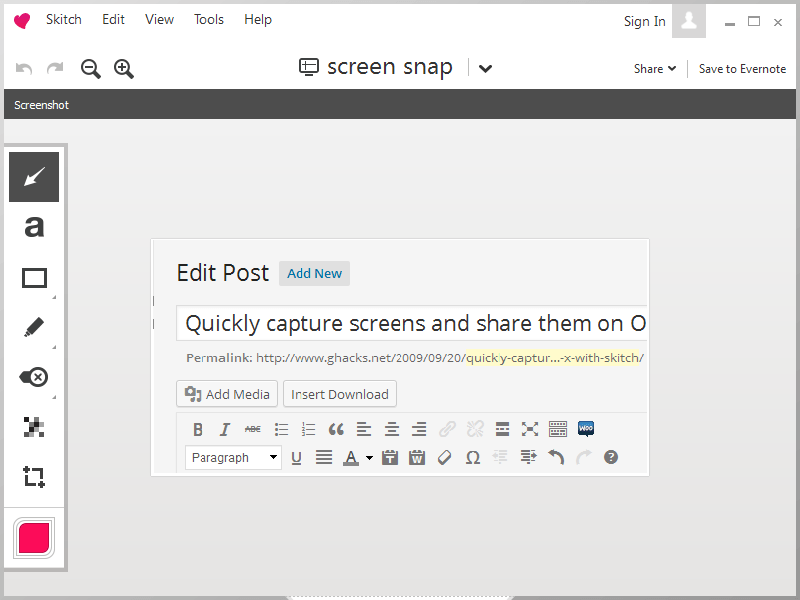
Skitch allows users to draw on screenshots and annotate them, through placing arrows and text. One can also make images have a transparent background, crop images, add a drop shadow to them or rotate them.
One of the cooler features is the 'drag' feature. When a screenshot has been captured and edited, if you click 'drag me', you can drag the image to a folder, an email or to open in another program.
Skitch can export images as JPEGs, PNGs, PDFs, SVGs, TIFFs, GIFs and JPGs. It can also upload images to Flickr, FTP servers, WebDAV folders and skitch.com, their own image hosting service.
The software boasts many features and I find it much better to use than Grab, as there's no need to have to use other pieces of software.
Update 2: Skitch has been acquired by Evernote. You can still download a standalone version of the application and use it though, so nothing changed in this regard. You can however integrate it with your Evernote account so that you can save the shots directly to your storage there.
After you start Skitch for the first time, the program's functionality becomes available right away. You can create full screen screenshots if you like, or create a screenshot of part of the desktop only by drawing a rectangle around the area after you invoke the feature.
All in all it is a pretty solid program, albeit quite large on Windows with its 33 Megabytes. Still works fine and if you need to take screenshot and use some editing afterwards then this is a program you may want to consider for that.
Advertisement












What I do in Leopard is either use the keyboard shortcuts to grab a full screen or it’ll let you grab a portion; this is Service separate from Grab, or if I need exactly, precisely the image of a window, I’ll use Grab; with shots from Grab I just select the window the shot appears in and and hit command-c to copy the image to clipboard (with keyboard shortcuts, I use the key combo that sends the shot directly to the keyboard – you can set those up in System Preferences>Keyboard Shortcuts), open Preview, go to File>New From Clipboard and there’s your image that you can crop, annotate, and save in all the popular formats (including PDF). Once you nail Preview down, it’s pretty cool – I’ve gotten to where I can use it to even create good enough quality text logos with it’s annotate tools for my websites with full transparency. The annotate tools on Skitch look a much more plush though. The Preview tools are really basic.
A part of Skitch’s terms of use is a little disconcerting though: Section 4 describes how third party software may be incorporated within Skitch, that you must accept all fixes and updates or your access to/use of Skitch Facilities (they define that as referring to both the app and the website) can be terminated immediately, that Skitch products AND these unnamed third party software elements may phone home… I applaud their transparency and candor, but agreeing to let an unknown third party software be installed as part of the package, let alone one that phones home… sounds like trouble.