ghacks Technology News

Two Quick Email Tips To Save The Day


microsoft outlookHere are two quick email tips that helped me save precious time over the years. The first tip works with any desktop email client running on the Windows operating system while the second tip works in any email client including desktop email clients like Mozilla Thunderbird and Microsoft Outlook but also online email clients such as Gmail or Yahoo Mail.

If you want to quickly send an email in the Windows operating system you have to start your email client, click on the write button and start writing the email. A much faster way is to press [windows R], type [mailto:] and hit enter. This opens the new email message window of the default email client on the computer system. It is even possible to add parameters like [mailto:admin@example.com?subject=test&body=test2] which would automatically add the recipient admin@example.com, the subject test and the body text test2 to the email.

There is probably a reference somewhere on the Internet that has a list of all possible mailto commands but I could not find it right now. It would be great if anyone would post it.

The second tip is more useful for recipients who sometimes have troubles if their email program divides a link on multiple lines making it lead to a non-existing page as only the first part of the link will be executed. Users who send emails should put long lists in <> brackets to avoid this.

Got any more email tips that you want to share? Let us know in the comments.


Tags: , , , , , , ,
Categories: Email


Related posts:

Change The Default Email Client In Firefox
Are You Up For An Email Client With Unique Features? Read On!
Change Default Mail Client In Windows XP
Five Quick Windows Tips II
Fix Slow Or Hanging Thunderbird Email Client
Email Client: Thunderbird 2.0.0.21
Make Gmail The Default Email Client
Make Gmail the default Firefox 3 Mail Client

19 Responses to “Two Quick Email Tips To Save The Day”

  1. Nick Staroba says:

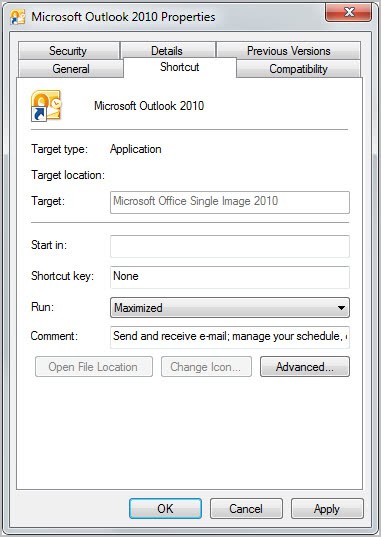
    I have 5 shortcuts made for emailing my 5 coworkers. Each email shortcut is formatted so that all my introductory and salutary words are put in automatically as well as the email address of the recipient.

    I placed these shortcuts in a “Shortcut” directory under Start > All Programs and tied shortcut keys to each one. Now when I need to email my boss I just hit CTRL + SHIFT + 1 and all I have to fill out is the subject and my exact message. Saves me a lot of time and is oh so convenient.

    I found this site with some info about mailto links:
    http://www.outfront.net/tutorials_02/adv_tech/mailto.htm

    Perhaps I’ll post a full explanation about this on my own blog…

  2. Rarst says:

    Seems like rather full guide on format:
    http://www.ianr.unl.edu/internet/mailto.html

    I’ve coded in mailto links on http://appnews.net/ for easy sending download links to someone (or yourself). :)

  3. Dotan Cohen says:

    In KDE the user just hits Alt-F2 for the runner dialogue, and enters the name of the person he wants to email. This opens a Kmail or Thunderbird Compose window ready to go.

    If you have the Virtual Identity extension in Thunderbird, it even configures your From address automaticaly!

Trackbacks/Pingbacks

  1. [...] View example place here: Two Quick Email Tips To Save The Day [...]

  2. [...] Quick Email Tips To Save The Day Source Two Quick Email Tips To Save The Day Here are two quick email tips that helped me save precious time over the years. The first tip [...]

  3. [...] second tip is more useful for recipients who sometimes have troubles if their email program divides a link on multiple lines making it lead to a non-existing page as only the first part of [...]

  4. [...] repetitive email with AutoHotkey, or learn how to create a shortcut to your open Outlook inbox. Two Quick Email Tips To Save The Day [...]

  5. [...] repetitive email with AutoHotkey, or learn how to create a shortcut to your open Outlook inbox. Two Quick Email Tips To Save The Day [...]

  6. [...] repetitive email with AutoHotkey, or learn how to create a shortcut to your open Outlook inbox. Two Quick Email Tips To Save The Day [...]

  7. [...] email with AutoHotkey, or learn h&#111&#119&#32to create a shortcut to your open Outlook inbox. T&#119&#111&#32Quick Email Tips To Save The Day [gHacks] Share&#32&#97&#110d [...]

  8. [...] repetitive email with AutoHotkey, or learn how to create a shortcut to your open Outlook inbox. Two Quick Email Tips To Save The Day [...]

  9. [...] repetitive email with AutoHotkey, or learn how to create a shortcut to your open Outlook inbox. Two Quick Email Tips To Save The Day [...]

  10. [...] telecommunicate with AutoHotkey, or see how to create a road to your unstoppered Outlook inbox. Two Quick Email Tips To Save The Day [...]

  11. [...] Au&#116o&#72o&#116ke&#121, or &#108earn ho&#119 to create a shortcut to your open &#79utlook inbox. Two Quic&#107 Em&#97il Ti&#112s To S&#97ve The D&#97&#121 [...]

  12. [...] telecommunicate with AutoHotkey, or see how to create a road to your unstoppered Outlook inbox. Two Quick Email Tips To Save The Day [...]

  13. [...] repetitive email with AutoHotkey, or learn how to create a shortcut to your open Outlook inbox. Two Quick Email Tips To Save The Day [...]

  14. [...] repetitive email with AutoHotkey, or learn how to create a shortcut to your open Outlook inbox. Two Quick Email Tips To Save The Day [...]

  15. [...] a este acceso directo o ver más acerca de este procedimiento puedes ir a ver el post original aquí. Technorati Tags: mail,tip & trick,how to [...]

Leave a Reply   Follow Ghacks   Subscribe To Comment Rss

© 2005-2009 Ghacks.net. All Rights Reserved. Privacy Policy - About Us