
How To Change The Edit Application In Windows

The Edit option pops up in Windows after right-clicking a file in Windows Explorer or another location on the system. If you select it, the file is opened in the associated program, e.g. Notepad if you right-click on a plain text file.
For image files it is usually Microsoft Paint while text documents are usually opened in Notepad.
Update: If you are using a newer version of Windows, you can perform a different operation if you don't mind association open with the program as well.
The easiest way to do that is to right-click a file of the file type you want to edit in a different program, select Open With from the context menu, and pick "choose another app" from the context menu afterwards.
Windows displays a list of programs that you can associate with the file type. Simple select one from the list or use the browser to pick a program from the system not listed by the operating system.
Setting a new program to open the file type will not only open it directly if you double-click on it but also open it if you select the edit option. Update End
Those applications are set in the Windows Registry where they can be changed so that Edit will open a different application.
It is actually pretty easy to change the default edit application in Windows to another one providing you know where to look for in the Registry to make that change.
Now, to change the default Edit application open the Windows Registry by pressing [Windows R], typing [regedit] and hitting [enter]. Locate the following Registry key:
HKEY_LOCAL_MACHINE\SOFTWARE\Classes\SystemFileAssociations
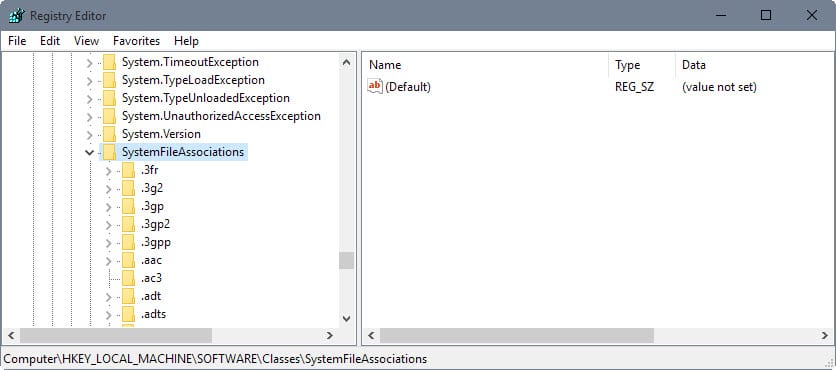
You find all the different file types Windows knows about and their association.
The order is filetype > shell > edit > command. Not every filetype has that chain but the most common ones do. To edit the default text editor in Windows you need to locate the text subkey and follow the path mentioned above until you reach the command key. There should be only one Default entry in there:
%SystemRoot%\system32\NOTEPAD.EXE %1
To change the program that opens when clicking on the Edit option in the right-click menu simply change the path so that it leads to the application that you want to use, for example
"c:\program files\notepad++\notepad++.exe" "%1"
Repeat the process for other file types that you want to change the edit option for. Restart the PC afterwards once you are done to apply the change.
Tip: Backup the Registry setting before you make changes so that you can restore the previous state if things go wrong. Do so by clicking on File > Export after selecting the SystemFileAssociations key as the root key.


















doesnt work on windows 11 latest version (10/31/2022)
did not work for win10 21H2 for .txt files.
what did work was to edit the “default” value in the key
[HKEY_LOCAL_MACHINE\SOFTWARE\Classes\SystemFileAssociations\text\shell\edit\command]
to change it to this:
c:\program files\notepad++\notepad++.exe %1
After installing Office 365, Microsoft decided that they would do a good deed and change the XML file association to be edited with WordPad… right?
As per this article, I right-clicked an XML file and chose Open With. For some reason notepad++, which I frequently use, is not in my list, so I needed to browse for it. After selecting that app, the “open with” dialog changed my selection to a different app besides the one I had chosen. Fortunately I noticed what Microsoft was trying to do there, and re-selected my app. I clicked OK, but now the edit option opens XML files in notepad, not notepad++, not wordpad. So I dunno, the Microsoft experience certainly leaves a lot to be desired. I will just resort to the registry.
Initial directions from Martin on top of this page worked for me on Windows 7 Home Premium SP1
Many Thanks!
You don’t have to restart to get the settings to take effect. Open up Task Manager (easiest is Ctrl+Shift+Esc) and go to the details tab. Find explorer.exe and select it and press delete. Your task bar etc. will disapear. In Task Manager go to File > Run New Task and select it, then type explorer.exe and press enter. The explorer shell will reload pulling in any settings you made.
You can also run below string thru command prompt.
To open command prompt, press on keyboard: Windows-key+R and type cmd.
string:
taskkill /f /im “explorer.exe” && start explorer.exe
Hi, I’m trying to change the default ‘edit with’ program for pdf’s. (Somehow its notepad++ now…)
It doesn’t seem to be in the same place as mentioned can anyone help?
Computer\HKEY_LOCAL_MACHINE\SOFTWARE\Classes\SystemFileAssociations\???
??? .pdf\shell\edit
Info:
-Windows 10
-I’m using Adobe reader to view pdf’s and Bluebeam to edit them.
-Its a work PC, I cant run any executable.
Above didn’t work for me on Windows 10 home edition. However this stand-alone program seems to do the job well for me. It’s a single exe file that is not required to be installed.
http://defaultprogramseditor.com/
I haven’t looked into this source code, someone should look into this and see what it does exactly.
Well it works well, but it edits the registry entries for HK_USERS/[user key]/Classes so it’s specific to the user logged in, which could be handy (or not) depending on what you are trying to do. It will also automatically (configurable) add the “%1” at the end of the program selected. It also has a nifty “Refresh explorer” option so you don’t have to reboot or restart the shell. If you are a bit nervous about messing with the registry directly it seems to be a good option.
I set a separate edit command for .ico files: exported the image key, exported the .ico key, pasted the shell-edit-command folders from the exported image reg file to the exported .ico file using notepad, saved, imported. Then found the application in start, right click, properties, copied the shortcut to the command key in the registry editor, added “%1” (whatever that is), voila! It worked immediately without rebooting. (Couldn’t use the app to “Open” because you couldnt see the thumbnails in explorer.)
Can you explain how to do this please? (I can’t see any option to type anything – address bar would have been kinda handy…)
“travis said on July 14, 2018 at 2:16 pm
Reply
I find it easiest to go to the line below the menu bar, probably says “Computerâ€, replace with “HKEY_LOCAL_MACHINE\SOFTWARE\Classes\SystemFileAssociations†and hit enter”
I did this, but now every time I right-click and “edit”, a Windows 10 popup asks me “How do you want to open this file?”, with the default option being “Keep using this app”, with Notepad++ being selected and requiring a press of the “ok” button. Is there any way to remove this, or did I do anytyhing wrong?
There used to be a place where you could not only set default programs but also add to the right click feature and put Edit with another file association. I edit *.gif files with more than one program. The default creates animation frames and the other is my photo editor that I want associated with EDIT in the right click menu. I used to change this easily in XP. Why is Microsoft dumbing down their OS. It seems the newer the OS the slopper they are becoming. Is it time to install Linux again? I run Windows 7 Pro and will not upgrade any further to the more stupid OS’s. 2000 Pro had this option to change and add to the right click menu. Why not make what you all had better instead of worse? (sorry venting!)
This is what I needed to “open” a png in photo viewer and edit it with gimp. I had to create the Shell\edit key, the Command key under that, and set the default value to “C:\Program Files\GIMP 2\bin\gimp-2.8.exe” “%1”
I have the command registry under both \HKEY_CLASSES_ROOT and \HKEY_LOCAL_MACHINE. Changing the image\edit\command in either of them accomplished nothing, and even though I wrote back “%systemroot%\system32\mspaint.exe†“%1†under data, I know get an error when trying to open any kind of image file – png, jpg, bmp, you name it. The error I get is: Windows cannot access the specified device path or file. You may not have the appropiate permissions to acces the item. :/
My stupid Windows install is opening MS Word when I choose to edit HTML files!!!
How does that even happen? Is MS seriously pushing Word as an html editor?
I had hoped that installing Notepad++ would treat this dysfunction but it did not.
The above method only changes the Open context (which happens to change the edit context for txt files.
To change the Edit context for Htm & Html, do the below
\HKEY_CLASSES_ROOT\htmlfile\shell\Edit\command – (default) REG_SZ “C:\program xyz” “%1”
I’m a Linux admin forced to do Windows stuff, and I’m sorry but this article, while very well written, is not very clear at exactly the point when clarity is needed. Specifically, I’m talking about where it says
“The order is filetype > shell > edit > command. Not every filetype has that chain but the most common ones do.”
What is “the order?” Do you mean to say
Computer\HKEY_LOCAL_MACHINE\SOFTWARE\Classes\SystemFileAssociations\[FILETYPE]\shell\edit
If so, it would be helpful to add a screenshot of THAT instead of the one you have of
Computer\HKEY_LOCAL_MACHINE\SOFTWARE\Classes\SystemFileAssociations\
It also does not seem to be true on my machine that most common filetypes have this key. In fact, none do. A few have keys like
Computer\HKEY_LOCAL_MACHINE\SOFTWARE\Classes\SystemFileAssociations\[FILETYPE]\shellex\
I would not be uncomfortable adding the keys if the article were more clear or if I could find the key on any other common filetype.
Interesting. The TekReview location is different and matches my configuration – I definitely don’t have it in the HKEY_LOCAL_MACHINE location, and instinct tells me you won’t have it in HKEY_CLASSES_ROOT, tho’ I might be wrong. My machine is running the free upgrade to Win 10, 64 bit. I have 4 others running Win 10, but we’re in the middle of a house move and I haven’t got time to check at the moment. Perhaps it depends on what was upgraded from? (In my case, a clean install of Win 8 upgraded through 8.1.)
I just tried this on Windows 10. Not only do I not have SystemFilesAssociations in the location detailed above, if I search the whole registry I get no match. Why that is, I don’t know, because it is there – but in a different location. http://www.tekrevue.com/tip/windows-right-click-edit-photoshop-instead-of-ms-paint/ has the Windows 10 version of this solution.
I find it easiest to go to the line below the menu bar, probably says “Computer”, replace with “HKEY_LOCAL_MACHINE\SOFTWARE\Classes\SystemFileAssociations” and hit enter
These are the same solution. The HKEY_LOCAL_MACHINE\Software\Classes key is a shortcut to the HKEY_CLASSES_ROOT hive.
I checked the setting on two PCs and they both have that setting in the location mentioned in the article.
Tony, I have checked in Windows 10 Pro and I still got the Registry key. Are you sure you looked in the right location? It is after all those System.* listings.
Nope. Because you can’t change the edit function from there, only the default double click program.
Isn’t it easier just to go into Control Panel\Programs\Default Programs\Set Associations and change it there?
Thanks a bunch! You don’t mention it specifically in the article, but if the edit > command keys (folders) aren’t present, you can create them yourself. I just tried adding “the path” “%1” to the Default string and it works flawlessly!
Thanks. It worked.
Thanks, Awesome Job Mate!
Thank you so much! You even used the path to the exact program I wanted to use for text documents in your example, and it worked on the first try. I love when someone takes the time to post a helpful technical tip like this, even though there probably aren’t very many people who will take advantage of it. Thanks again!
What sucks is that there used to be a dialog for this. Sure, I could do it in the registry, but why did microsoft feel the need to dumb down and remove functionality when they built their newest OS?
how do I edit to tick “notify followup via email” if forgotten in initial post?
You cannot. All you can do is leave a second comment and check the box there.
The above works but isn’t it easier to just use right-click [Open With …], navigate to desired program and tick [Always use this program]?
You misunderstand, We need to “EDIT” (or “Edit With…”) the file and NOT “Open With…”
So, there is not right click choice for that.
Alec: You sometimes have a default application and a handful of other applications that you use to open a certain file type. Say, you open images in your image viewer usually but sometimes want to use a different application to view them.