
Remove Microsoft Groove Folder Synchronization

If you have installed Microsoft Office on a computer system you might have installed a module called Microsoft Groove with it. Microsoft Office Groove was designed for document collaboration "in teams with members who are regularly off-line or who do not share the same network security clearance". The area where most users come in contact with Microsoft Groove is the right-click context menu entry that is added after the installation of Microsoft Office. The Groove Folder Synchronization will appear on right-clicks but also in Internet Explorer and other areas of Windows Explorer.
The easiest way to remove the Microsoft Groove Folder Synchronization is by uninstalling Microsoft Office Groove. That is the best and most secure way to deal with the entries of that Office module. All you need to do is go into the Windows Control Panel, select Add / Remove programs, click on the Change button in the Microsoft Office 2007 entry, select to add or remove components and to uncheck Groove when the list of components is displayed.
This will uninstall Microsoft Office Groove from the system. Users who simply want to get rid of the context menu entries can do the following instead.
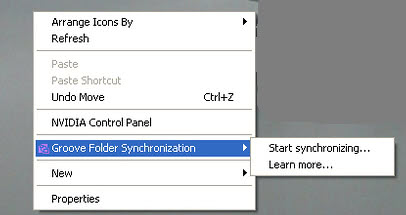
Locate the following Registry keys and delete them to remove the Groove Folder Synchronization entries:
HKEY_CLASSES_ROOT\*\shellex\ContextMenuHandlers\XXX Groove GFS Context Menu Handler XXX
HKEY_CLASSES_ROOT\Directory\shellex\ContextMenuHandlers\XXX Groove GFS Context Menu Handler XXX
HKEY_CLASSES_ROOT\Directory\Background\shellex\ContextMenuHandlers\XXX Groove GFS Context Menu Handler XXX
HKEY_CLASSES_ROOT\Folder\shellex\ContextMenuHandlers\XXX Groove GFS Context Menu Handler XXX
HKEY_CLASSES_ROOT\AllFilesystemObjects\shellex\ContextMenuHandlers\XXX Groove GFS Context Menu Handler XXX
This will remove the entries from the context menu but will not uninstall Microsoft Office Groove.
Update: It is recommended to backup the Registry keys first before you delete them. To do that, right-click on the key and select Export from the context menu. Do that for all keys that you delete.
Microsoft Office Groove has been renamed to Microsoft SharePoint Workspace in the meantime by Microsoft.
Advertisement

















Dear,
Please help me this saturation. Because my personal files are cannot see now. How can I get back. Please help me, because of important for me.
Thanks and best regards,
Min Ko Ko Naing
very helpful tip on removing groove folder sync off of the right-click context menu.
At one time I experimented with Groove Folder, and all my desktop icons are now highlighted. Even though I removed Groove Folder per your generous instructions, the icons are still all highlighted. I guess it’s not hurting anything.
thank you
Um are you all stupid? Deleting registry data? Of course the groove sync feature is still on your system just not in sight. Don’t you want to remove it completely? Free up space?
Here you go: Go into control panel, add or remove programs, Microsoft Office, “CHANGE”, and TAH DAHHHHHHH you have the option to remove any of the features.
Next time search for a better answer.
Thank you. Works in WinXP with Office 2007.
works with office 2007 and win 7.
thanks a lot, buddy!
Thanks for the tip, this Groove Folder thing is always getting in the way. You can search for ‘XXX ‘ as well, to find the entries.
Thank you!!! This was a great posting. Appreciate the info sharing.
Thank you for this. The mighty google brought me to this page.
Confirming that it works with office 2010!
Peace :)
i tried removing it thru add/remove programs and MS Office – change thing but I could not find groove anywhere in MS Office.
About those registry things, how do I find them so that I can delete them.
In my laptop, whenever I start the system, groove starts running.
that is the only prob.
I dont have any problem with my right click entries.
Thank you for this fix. Easy directions and good explanation.
thank for this tip.. I don’t want to see my right click context menu that wider..
I can’t eevn find microsoft office 2007 in my add/remove programs -,- , i have vista sooo… can any1 help?
I struggled for a while, because I couldn’t find Groove in my add/remove programs. If that happens to you, go to Add/Remove, click on Microsoft Office 2007 and select CHANGE. Then you can deselect individual components, amongst others, Groove.
at last!!! i was searching this for almost a year now. thank you for sharing this!
Thanks but there is no icon to remove in add/remove programs. Just an annoying configuration box that keeps popping up. I need to get rid of it another way.
It works under xp, too,
Thank you nice work.
I made a .reg file which makes it easier to add/remove the context menu.
add menu: http://snippets.dzone.com/posts/show/6810
remove menu: http://snippets.dzone.com/posts/show/6809
tested only on vista.
Well I always felt Grove to be a burden.
ty for the solution. i always hated it taking up space in my context menu. an easier way would be bringing up search in the Registry for ‘XXX Groove GFS Context Menu Handler XXX’ entries. make sure the 5 entries which Martin stated are deleted.