
How To Deal With Stuck Print Jobs

It happens from time to time that a print job is not processed by Windows and that it cannot be deleted at the same time; a stuck print job so to speak which will block all other print jobs from being processed.
Even a restart of the computer system will not get rid of the stuck print job which makes it one of the most frustrating experienced when working with the operating system.
There is however a fast and efficient method to remove stuck print jobs from the print queue so that printing is not blocked anymore.
All that needs to be done basically is to stop the Print Spooler service, delete the stuck print jobs manually and restart the Print Spooler service afterwards.
This can all be done using the Windows command line for maximum effectiveness or in the Windows Explorer interface for users who prefer to click their way through the process.
To use the GUI approach you tap on Windows-R, type services.msc and look for the Print Spooler service. Right-click that service and select stop from the context menu.
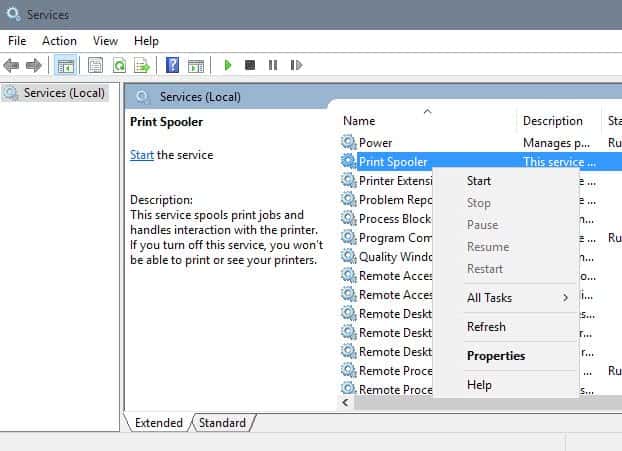
This will stop the Print Spooler so that you can delete print jobs from the queue. Keep the window open as we need it again to start the Print Spooler service.
Now use Windows Explorer to open %systemroot%\system32\spool\printers\ and delete all files that are found inside. Once that has been done it is time to start the Print Spooler service again.
This is done in the same way it was stopped.Right-click the service again in the Services manager and select Start from the context menu to start it again. If you don't do that, you won't be able to print at all. All print jobs should be gone and it should be possible to run new print jobs again.
If you prefer the command line you can run the following four commands for the same effect. It is probably a good idea to add them to a batch script as you'd just have to click on the file to execute it and perform the operation in one step.
net stop spooler

del %systemroot%\system32\spool\printers\*.shd

del %systemroot%\system32\spool\printers\*.spl

net start spooler
The script does exactly the same as the manual method. The two lines in the middle delete the print jobs, the first stops the Print Spooler service, the last starts it again on the system.














Thank you very much, I turned the print spooler service off as you said, I couldn’t manually delete the print job that was jammed but when I turned the print spooler service back on it had deleted the jam and all working normally again
A very good post! . If you do not want the deletion confirmation prompt, you can run :
Del /Q /F /S %SystemRoot%\System32\Spool\Printers\*.*
Explained here : http://www.sysadmit.com/2015/09/windows-eliminar-trabajos-cola-impresion.html
but I can’t delete the problem file – it keeps giving the error that ” cannot delete it is being used by another person or program”
fixed it … i stopped the spool outside of the server where the printers reside so it wasn’t really stopped. Thanks because this was really helpful!
Nice bat file command, it is really works for me
Thanks a ton
Thank you, thank you, thank you!!!!
This fixed my printer. Im glad to learn that. Hopefully I’ll remember next time if it happens again.
If you can’t delete the files (which was the case for me) then stop the printer Pool Service, delete the files and restart the service. Works like a charm.
What about local printer that jobs keep getting stuck in que?
Wow. Thank you so much. This was so helpful.
Thanks so much for this post! I was utterly clueless how to get that damned stuck print job to clear.
Whoever wrote this, thank you. You are a lifesaver my printer was backed up for the longest time.
any chance of an explanation as to why these print jobs are sticking
We have a couple print servers supporting around 1000 users and this happens continually. is a high profile banking environment with so much printing that can’t just bounce the spooler.
300+ Printers are all HP and I have tried about everything
new drivers, processor to winprint.
Microsoft has been working on it for about a month.
but I don’t think anything is actually broken
I am seeing the issue stabilize when I change 3 settings on all the queues: disable snmp on each port, change print processor to winprint and set to use spooler on server as appose to print directly to the printer. have suspected a network issue but not finding any network errors on the server, printer or switches.
any thoughts?
Going through the steps it appeared not to work because it still wouldn’t let me delete the stuck job…however, I “restarted” the Print Spooler and the printer suddenly began printing and the stuck job magically disappeared! Thanks for your help!
didn’t work. still stuck.
This doesn’t solve the problem that I have. Printer job is still stuck.
Thanks! A very informative post. Printer issues can be among the most annoying!
Feeling dumb, I was doing that manually for ages and never thought about making it into script. :)
Merry Christmas Ghacks.net all the best !