
Windows Tip: Edit User Registry of other users

When you make changes to the Windows Registry you normally can only make them for all users or the user account that is currently logged in. But what if you want to make changes to the Registry of another user of the system?
It should be clear that you can only do so if you have the proper rights on the system, but if you do, you can easily load the Registry information of any other user in the Windows Registry editor to modify preferences there.
It is actually easy to load other Registry hives using the built-in Registry editor of the system. Let me show you how that is done.
First thing you need to do is start the editor. You do that by bringing up the run box with the keyboard shortcut Windows-R, typing regedit and tapping on the enter key afterwards.
Note that you may get a UAC prompt depending on security settings and the version of Windows that you are running which you need to accept.
Mark the HKEY_USERS folder in the Registry and select File > Load Hive from the menu at the top. Note that the Load Hive option may be grayed out if you have selected a different Registry root folder.
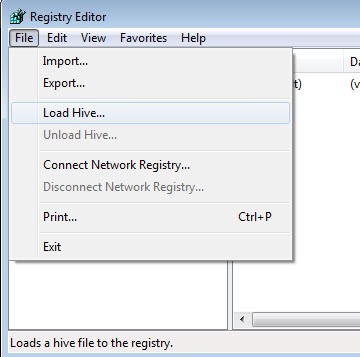
The default directory that opens is the directory of the user who is currently logged in. You need to browse to the user directory of the user account that you want to modify the Registry for. Those accounts are listed under the Documents and Settings folder in Windows Vista or the users folder if you are running Windows 7 or newer versions of the Windows operating system.
Open the folder and look for the file ntuser.data. The file is hidden by default and you may need to enable the display of hidden files or folders on your system before you can see and select the file.
Double-click on the file afterwards which loads it in the Registry editor as a subfolder of the HKEY_USERS folder there. You can then make changes to the Registry like you would normally do.

















The modified instruction supposed to answer the question of quote “cannot load C:\Documents and Settings\Username\NTUSER.DAT.LOG The process cannot access the file because it is being used by another process.” However, repeatedly the same tone without a solution. I encountered the same situation. Whatever key names are not accepted with the same popup warning message…..being used by another process.
I also was receiving the error : cannot load C:\Documents and Settings\Username\NTUSER.DAT.LOG
It is caused becase you are selecting the .log file. It doesn’t look like it because there were other entries named ntuser.dat.log below it. It is indeed because you are selecting the .log file. (Bear with me, I didn’t think I was either!)
Navigate to folder c:\Users\Default
Press Alt to show menu options and go to Tools>Folder Options>View Tab>
Uncheck “Hide Protected operating System Files”
Uncheck “Hide Extensions for known file types”
Try it to load the hive again and you will now how the correct file to load.
Great !
Thx for the info. It works perfect.
@Jon Rosen:
Jon, do you have file extensions showing? If not, ntuser.dat.log will appear as ntuser.dat and ntuser.dat will appear as ntuser. The one you need is larger in size (one I am looking at is about 6mb) and has an icon that looks like a white box with with a smaller box with colours (the standard Windows icon for when it doesn’t really know what the file is) and the other one has a notepad for the icon and is probably only about 1 kb in size.
To show file extensions and check what you are looking at, from the folder with ntuser.dat in it, choose Tools and then Folder Options. Click the View tab and scroll down until you see “Hide extensions for known file types” and remove the tick. Then just OK out of that box.
I will comment though, anyone who needed to follow the instructions to show file extensions may not have the computer knowledge to safely poke around in the registry doing something like this. If you do poke around, I suggest you do it by following instructions very, very carefully. Mess up in the registry and you may not be able to start your computer up or could damage programs. Also, back up your registry first.
Jon, sorry, I hadn’t actually tried loading a hive when I tried this and I realise that where you are finding ntuser.dat isn’t a place where you can change whether file extensions are shown or not. To change this, open My Computer or any other Windows Explorer window and choose Tools and then Folder Options from there. The rest of the instructions are fine.
Yes, I have the extensions showing, and I choose the right one, but it’s giving me an error, effectively telling me that the one I chose, is not the one I selecting to load, that’s the problem
When I load the hive (only choosing ntuser.dat) it tell sme cannot load ntuse.dat.LOG: error while loading hive. I’m not choosing the .LOG one however
I can’t get this to work, I get two errors:
Cannot load C:\Documents and Settings\Username\NTUSER.DAT.LOG Error while loading hive
This error is when I try to load the NTUSER.DAT. log that I am working on:
cannot load C:\Documents and Settings\Username\NTUSER.DAT.LOG The process cannot access the file because it is being used by another process.
I can only get NTUSER.DAT.LOG to allow me to enter a Key name, but it doesn’t work.
Modified instructions:
From: dhacks.net, dougknox.com, tech-archive.net
When you make changes in the Windows Registry you normally can only make them for all users or the user account that is currently logged in.
But what if you want to make them in another user account?
There is an easy way to do that by loading the Registry hive of the user into the Registry:
1. Start the Windows Registry with either:
Windows key + R,
Start >> Run >> Regedit
2. type regedit and press enter.
3. Highlight the HKEY_Users folder in the Registry
4. click on File > Load Hive
5. The default directory that opens is the directory of the current user.
6. Navigate to the user directory of the user that you want to make
changes for by clicking the up arrow.
7. All available directories are listed in Document and Settings.[1]
8. Enter that folder and look for the file ntuser.dat. ntuser.dat is hidden, if you can’t locate it change the folder settings so that you can see hidden files and folders in Windows.
Click the folder and then click okay.
Note There is also a file called ntuser.dat.log. Don’t open this.[2]
10. You’ll be prompted to enter a “Key name”. You can use whatever you wish, but I suggest using the User’s logon name.
11. You can now expand the Hive you just loaded and make any needed changes.
12. When finished, highlight this Hive again and in the drop down menu, click File >> Unload Hive. This loads the Registry hive as a subfolder of HKEY_Users with the name that you have selected after clicking on the ntusers.dat file.
You MUST unload the Hive prior to logging on to the users account. Otherwise XP may have trouble loading the user’s profile.
Hmmm… What if you just right-clicked regedit.exe and then RUN AS… and carried on from there?
Will this tip also work for less privileged users ( I mean, non-admins )?