
Change the System Restore Size in Windows Vista

It is possible to define the percentage that the System Restore feature in Windows XP allocates from a hard drive partition. Windows Vista has System Restore build in as well but no obvious way to define the percentage of the hard drive that System Restore allocates. Microsoft thought it would be a good idea to hide the setting well and allocate 15% of the hard drive's capacity to System Restore. On a 300 Gigabyte drive System Restore would allocate a maximum of 45 Gigabytes of space.
The company seems to remove features from newer versions of their operating system to "make it easier" to use for users of all experience levels. What Microsoft may not take into account here, apart from experienced users who get less options to configure the system, is that less choice often means a simpler system.
You can change the size of System Restore in Windows Vista, and other newer versions of Windows for that matter, from the command line. To do so you need to open an elevated command prompt by tapping on the Windows key, entering cmd, right-clicking on the command prompt result here and selecting to start it as an administrator.
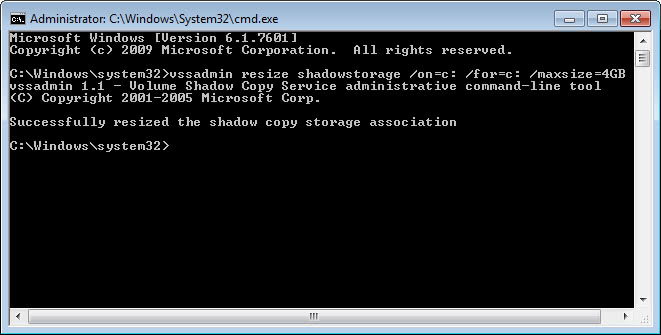
Once you have done that use the following command to change the size of System Restore in Windows Vista:
vssadmin resize shadowstorage /on=c: /for=c: /maxsize=4GB
This changes the allocated size of System Restore on drive C: for drive C: to 4 Gigabyte. Please note that the on: parameter is the drive letter where the System Restore files are stored while the for: parameter defines the drive that the files should be backed up on.
The maxsize parameter is pretty obvious as it defines the storage that you want used for system restore. Note that it can't go below 300 Megabytes. If you remove the maxsize parameter the settings will be changed to the default one again.
If you select a size that is lower than the current amount of space the oldest entries in System Restor will be deleted first.
Advertisement















Amazing what this did to reclaim my space… Thanks!
More kudos for this snippet of info – just recovered half my used hdd back!! little 250gb laptop, showed 68 gb used… ran the cmd line, now we’re only 35.5 gb used… damn..
Many thanks for this.. !
My sincere thanks for this incredibly helpful bit of information. I have tried various means of cleaning up my mysteriously shrinking hard drive, and was told that I needed to shrink the system restore space. I thought I fixed the problem a few months ago, but it came back, and the cmd prompt here did the trick. Well done!
To answer The PC Tech Guy above…
You will lose the space if you restore from those “idiot disks” provided by most PC manufacturers these days. Why? Because when you update using Windows Update, it sets a restore point on all the updates. I just went through that and found my 300 GB drive 31% full. I turned off system restore when done updating and watched it drop to just 17%. And this is before any of my external software was installed. Now I don’t know about you but I don’t think the loss of 14% of my drive, even if it is for 90 days, is a good thing.
So thanks Martin for showing me how to limit the size of that beast!
System restore only holds restore points for up to 90 days, therefore, System Restore can take a lot of space if you frequently install/uninstall, and create restore points. To have System Restore take up around 10 GB of space… well I don’t know what you’re doing with your PC. And even if it does, after 90 days of its creation date, it’ll be gone.
What a great help. I just purchased an Acer 1410 netbook/laptop with a 250 GB drive. Twenty GB used by hidden drive. C drive indicated a 220GB size but after two weeks and installing only a few basic programs (program folder showing 4+Gb and Windows at 16GB the usable space was now showing 160GB. I spent much time trying to account for the loss.
Many thanks to you for offering the solution.
Dennis
Thumbs up for post, thumbs down for vista and Microsoft, as usual.
Hi, thanks for the tip!
But I have two drives, C and D. Do I need to limit the D drive as well?
Yeah,talking about lost disk spaces…I’m using a 1tb harddrive for my system. Then one day I found I lost more than 100gb for no reason…
Yeah thanks now i can have more free room only using 40% instead of only 25% + System Recovery. of my hard drive space because it increases the life time of the HD by 300% especialy i had only 512 MB instead of the 4GB i have now.
The more Ram the bigger the lifetime of the HD
Hi all
My problem started when i did a system recovery, I did the recovery everything went back to be nice and new and i started installing my firewall etc and world of warcraft when i happened to notice my harddrive saying 10.1gb of 48.8gb free!!!
Im a little confused by it all and dont know whow to do what yous aid i ran the command line on the c drive and i get the error
you dont have the correct permission to run this utility from a command line that has elevated admin access??
I really am lost but on top of it all my hd is supposed to be 80gb so i have lost 30gb straight away and on top of it the 50gb it has given me only has 10gb space free, please help i am close to throwing the tower out of the window as i have had no end of problems with it
Help would be much appreciated
I also want to thank you for explaining things clearly. I was trying to figure out why I had 122gb used on a 455gb hd (500gb), when files only added up to 68gb. The net amount of 55gb is roughly 12% of my 455gb drive, within (but approaching) the 15% allocation you described.
I agree with your assessment of folks becoming users rather than ‘controllers’ of their computers, as less and less customization becomes available. This does protect against people hopelessly tangling themselves up with ‘system fixes’; but it also turns us into rather passive users, who often can’t find answers to legitimate questions (like this one: ‘where’d my disk space go?’)
Gracias. Bill S.
Thank you so much… i have been turning insane trying to figure out where my free space has gone. you are saviours, thank you.
thanks for the advice i just recovered 23gig of space on my hd…..thank you very much..:-)
What a surprise: on my 100GB notebook disk the free space went from 15GB to 29GB as soon as I changed the max to 3GB.
I’ve only been using the restore utility for a week, so that tells you how quickly it fills up.
Much better.
Thank you for providing this. It really annoys me how Vista hides settings like this. New restore points are created EVERY DAY by default on vista with no clear way to change that either.
15% space will be used within a few weeks no matter what you do with computer (unless you change the setting of course). Absolutely ridiculous. Maybe the HD manufacturers had a word with MS? Did they want to force more sales by cleverly shrinking the size of everyone’s disk by 15%?
Anyway, I’ll go ahead and use your tip. Thanks!
In Windows XP, the space allocated for system restore
is a maximum allotment and not a restriction
of the use of any space on the hard drive.
I suspect the same is true for Vista.
One would not have to worry about Vista taking up
15% of space for system restore unless there
are enough system restore points over time
accumulated adding up to that amount.
On my Windows XP Professional system with
over 100 GB of data a single restore point
takes up 75 MB of space and I maintain only
a few restore points at any given time.
thanks thanks thanks!
as an additional question how much space do the vista require for 1 restore point (as an estimation- 300MB or 1GB or what?)