
How to add My Computer to the Task Bar

This little tweak is really helpful if you happen to have many program windows open and would like to access a hard drive on your computer quickly.
Sure, you could hit the left windows key and M and all windows minimize automatically, but you still would have to double-click the My Computer icon and the hard drive icon before you see the contents of the drive displayed in Windows Explorer; that is, if you have My Computer on your desktop at all or Windows Explorer on the taskbar.
To use this tweak you will have to do the following: Right click on a blank spot on your taskbar and select Toolbars > New Toolbar from the menu. Browse to My Computer and hit ok. That's all there is to do.
From now on a My Computer icon is available in the taskbar just to the left side of the system tray. Left clicking on My Computer opens a list of all drives that are connected to your computer at the moment and a link to the control panel.
You can add other links besides the My Computer one, for example you could add on to all items that are currently available on your desktop, to iTunes, links and even single folders can be added to it.
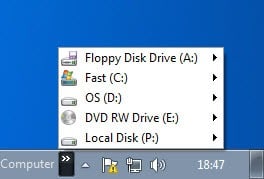
Update: While initially only available under Windows XP, the very same method is still working on newer versions of the Microsoft Windows operating system. Just follow the steps outlined above to add My Computer to the taskbar in Windows Vista, Windows 7, or even the soon to be released Windows 8 operating system.
Please note that My Computer has been reamed to Computer in newer versions of Windows. Just select Computer from the left sidebar menu after the file browser opens and click on the Select folder button afterwards to have it added to the Windows taskbar.
Note that Windows Explorer is automatically pinned to the taskbar on Windows 7 and Windows 8, and that it may be sufficient to you. You can also pin drives to the taskbar using a program like Taskbar Pinner.
Update 2: If you are running a newer version of Windows, Windows 10 for instance, then you need to select "This PC" instead of "My Computer" as Microsoft changed the name and functionality of it slightly.













absolutely brilliant stuff…appreciated!!
Thaks for this
Cheers
If all you’re trying to do is simply get to My Computer, why would you not just simply hit the Windows key and the letter E?
Works just as fast.
Just a question.
well the task bar “hack” makes it possible to access the files faster than using the normal way..
i have used this trick while ago. it really useful if you too lazy to double click your my computer icon on the desktop. :)
How about just using Windows+E to open Windows Explorer (My Computer)?
I still prefer a simple link via the quick launch bar. It doesnt take up as much room, and you dont lose your left click abilities, like “manage my computer”
Simple, yet useful.