
Assign Drive Letters to Folders

Did you know that it is possible to assign drive letters to folders so that you can access those folders as if they were hard drive partitions?
This makes it not only easier to access those folders on the system, as you do not need to navigate to them first in Windows Explorer, but also makes running programs easier especially from the command line as you do not have to enter the full path to the folder but the abbreviated one instead. In addition, it may speed up load and save operations on Windows systems.
It is very easy to assign a drive letter to a folder, to do that, do the following:
- Click Start, select run and enter cmd. You can alternatively bring up the run box with Ctrl-r, typing cmd and hitting enter.
- This should open the command line interface of your windows operating system.
- The command that we need is the "subst" command and we use it the following way: subst drive folder. Make sure you don't add a trailing slash to the folder as the path may not be found otherwise by the command.
- Lets say you want to assign the drive letter X to the folder d:\movies on your hard drive. To do that you write the following command: subst x: d:\movies
That is all. Fairly easy isn't it? Now the drive letter x: remains accessible as long as you do not turn off or reboot windows.
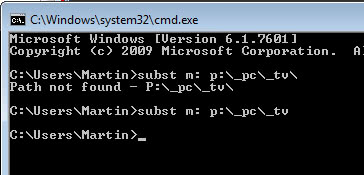
If you want to make this permanent you will have to do the following:
- Create a new file and name it drive.bat. Edit the file and add the line subst x: d:\movies to it and save it.
- Right click the Start button, select Open All Users.
- Open Programs, Startup and right click that location.
- Select New Shortcut, and select the drive.bat file that you created.
- Select Next and finish.
- The command will be executed for all users during every startup of windows so that the folders can be accessed using the selected drive letter.
- If you are running Windows 95 you can edit the autoexec.bat and add the line there.
Update: If you do not like to work with the command line or bat files, you could head over to NTwind to download Visual Subst instead, which is a gui version of the program.
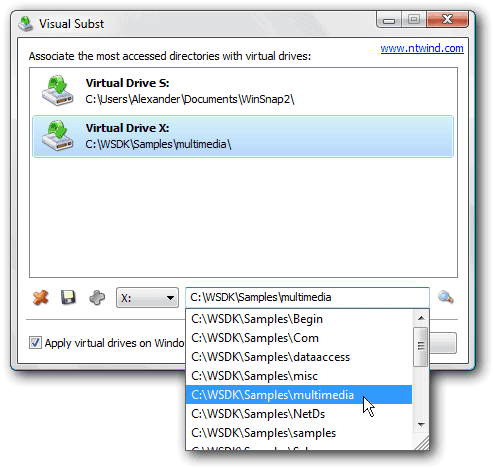
To use the program simply select a drive letter in its interface and pick a folder from a hard drive to link the two together.














The command works in Window 7 but cannot get the Batch file to run at start up.
very nice :)